Generating a Looker report for Google Analytics 4(GA4) via the SEOIE App for the first time? No problem.
Below is a step-by-step guide to help you generate your GA4 new report.
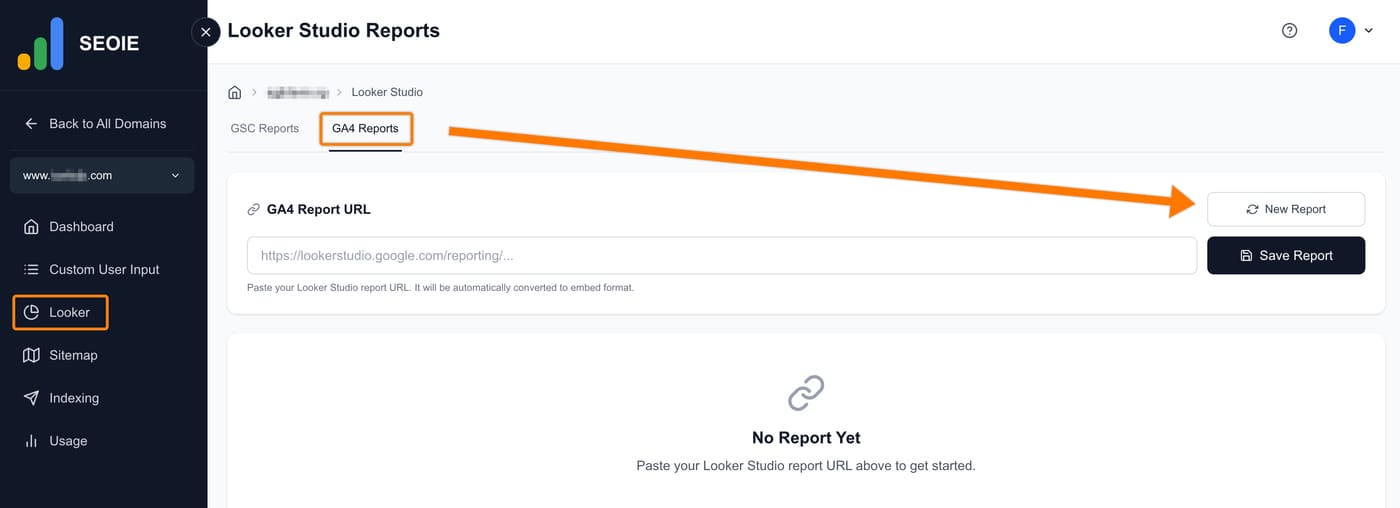
Go to the ‘Looker’ menu > GA4 Reports tab, then click ‘New Report’.
Click ‘Generate’.

After clicking the ‘Generate’ button, you will encounter one of the following scenarios:
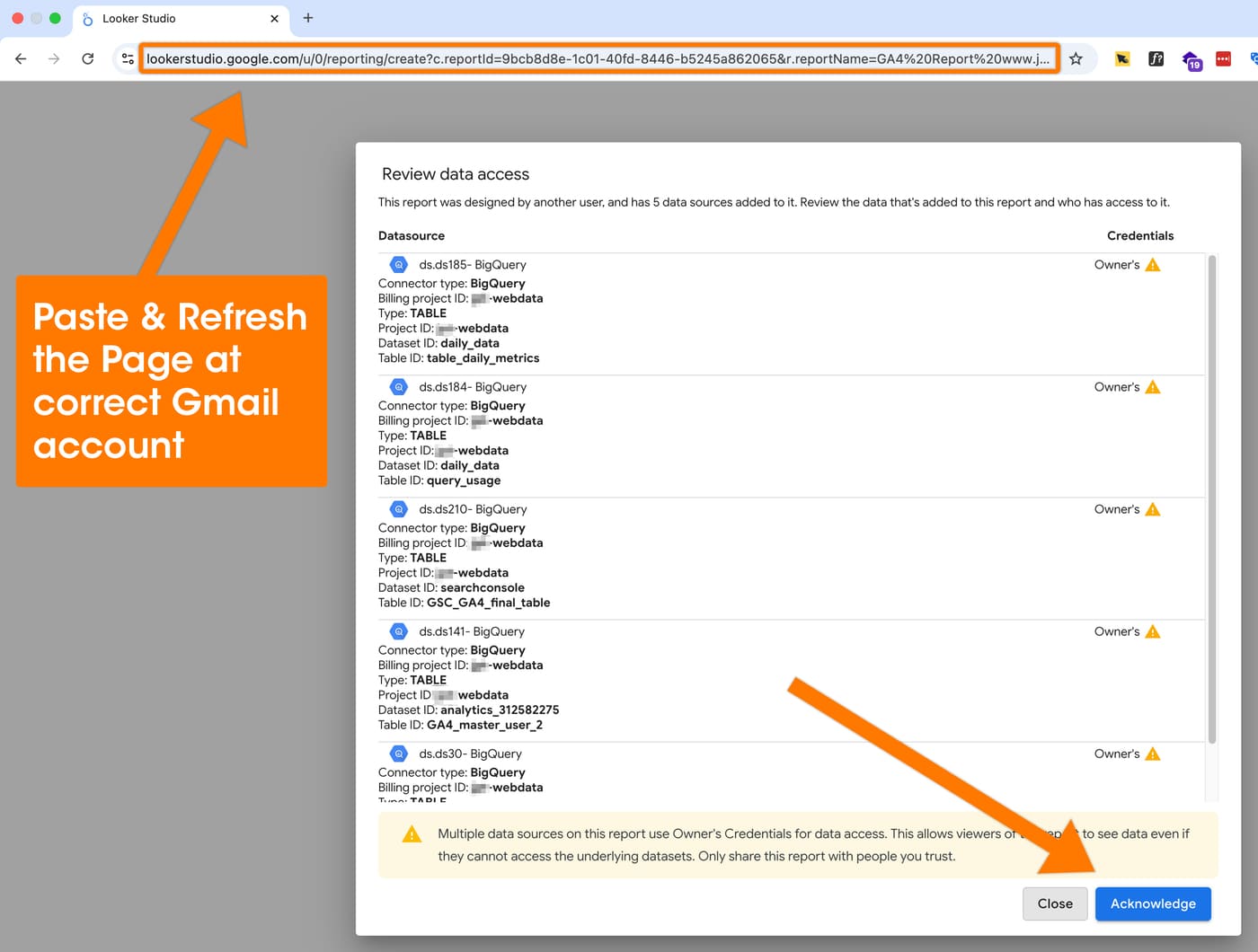
Scenario 1: If the Gmail account you use for the SEOIE App is the same as the one you use for Google Cloud, you can simply click ‘Acknowledge’.

Scenario 2: If the Gmail account you use for the SEOIE App is different from your Google Cloud account, you will see the following error message: “Something went wrong when building your report.

No worries. Simply copy the URL of this page and paste it into a browser tab where you are logged into the Gmail account used for your Google Cloud project.
The error message will disappear after you reload the page and click ‘Acknowledge’.
After that, click ‘Edit and share’ button.

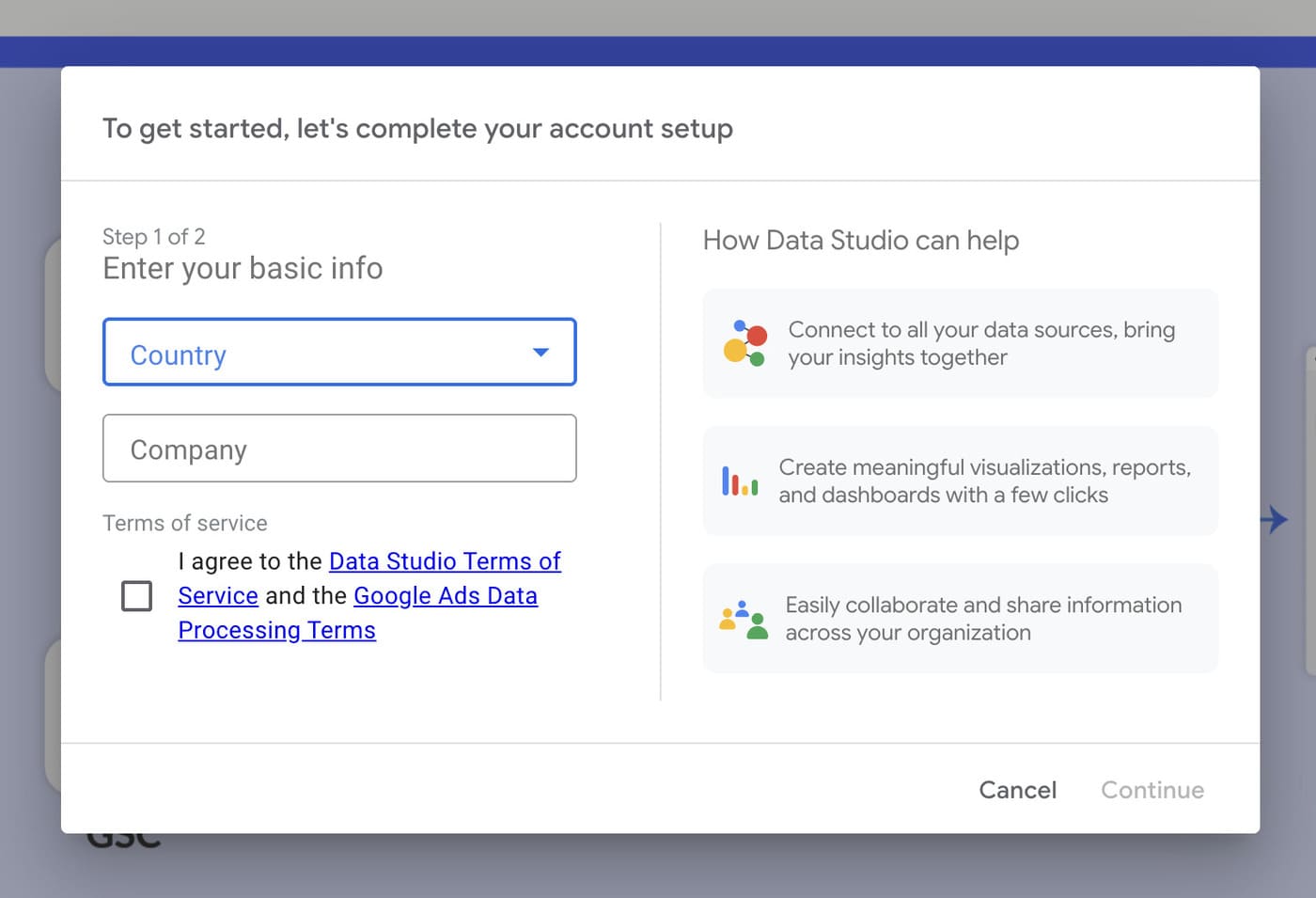
Some users will be required to complete this basic setup for Google Looker Studio before they can proceed. Please enter the requested details and click ‘Continue’.
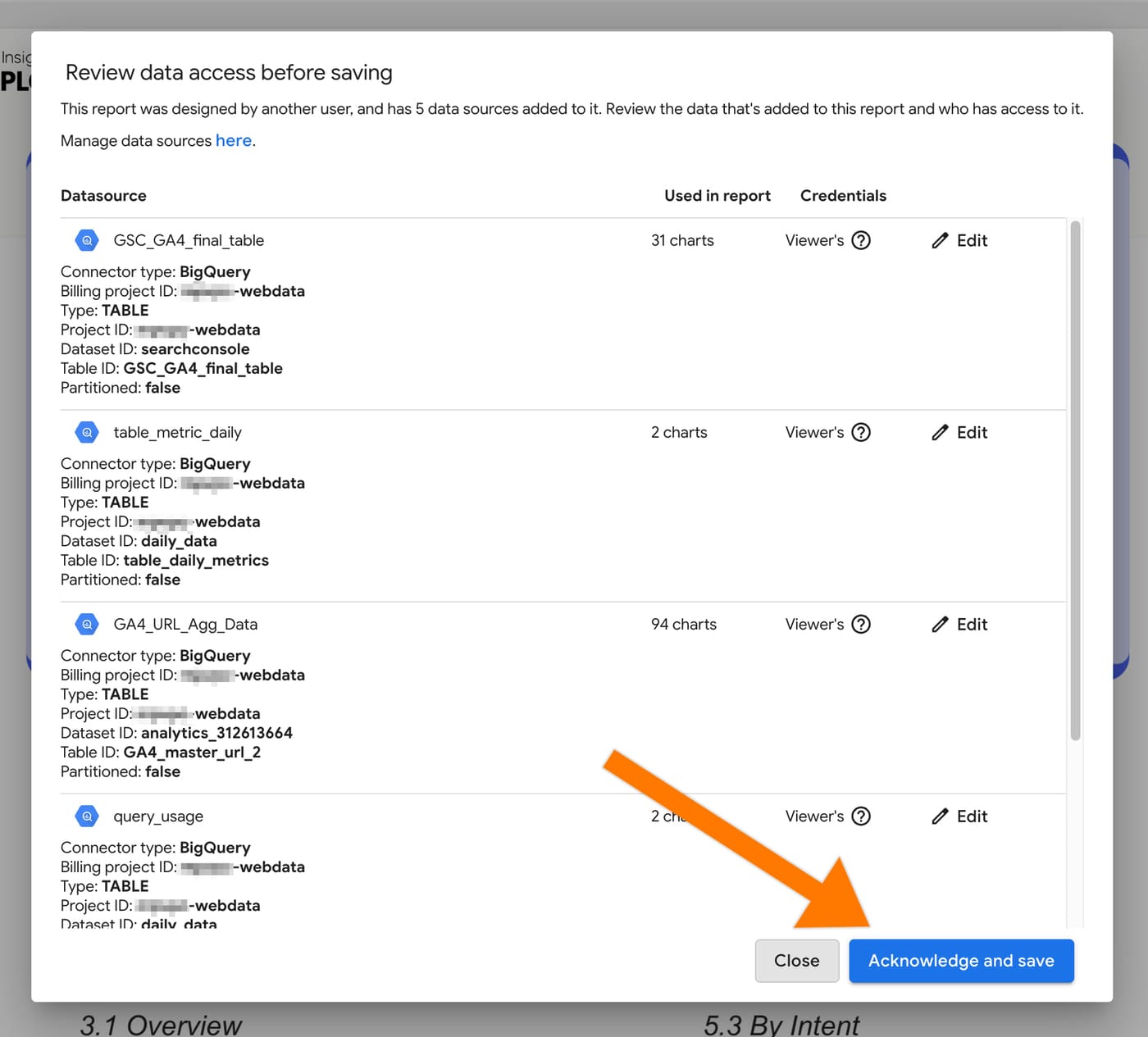
Click ‘Acknowledge and save’ button.
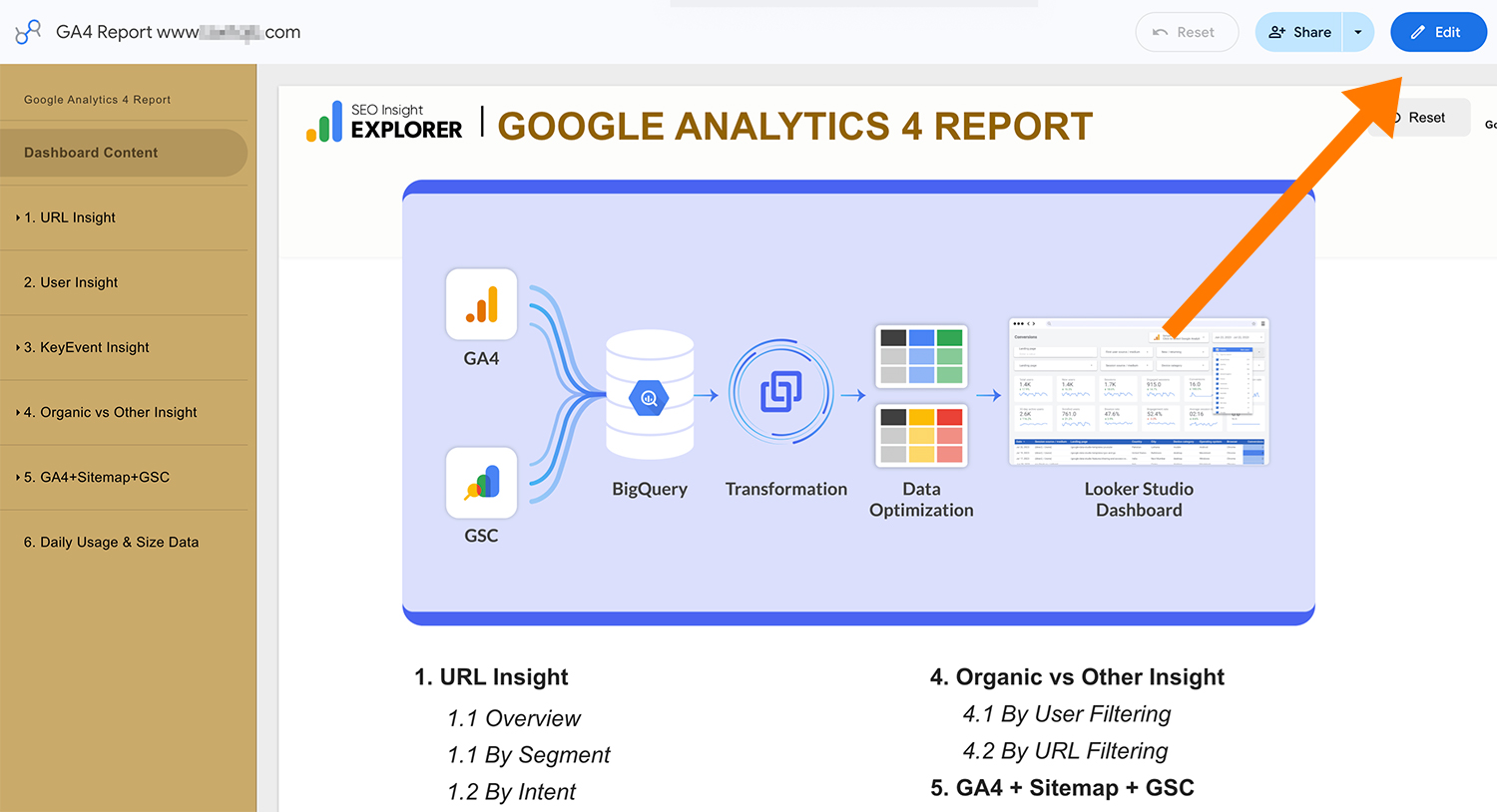
Click ‘Edit’.
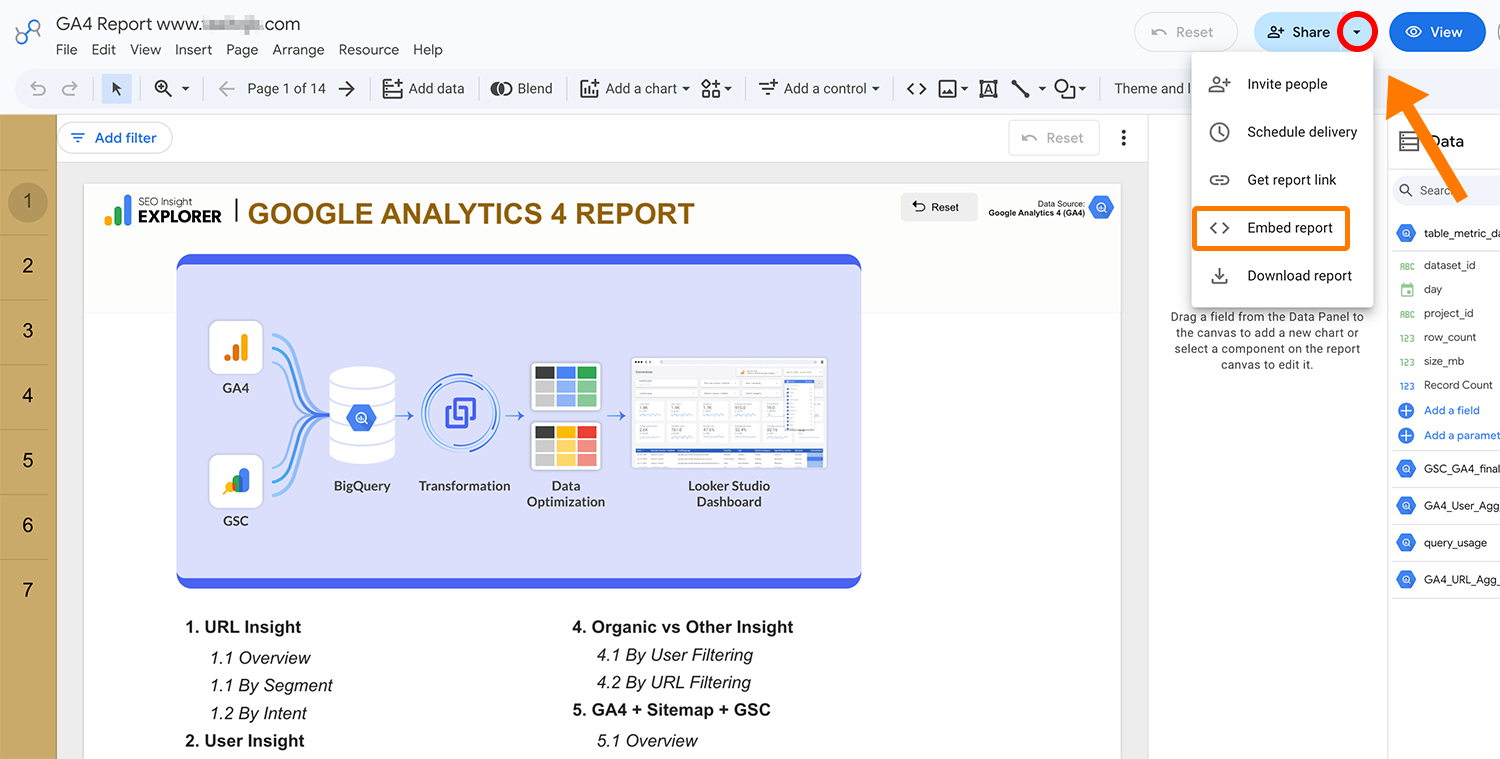
Click ‘dropdown arrow next to Share’, and then choose ‘Embed Report’.
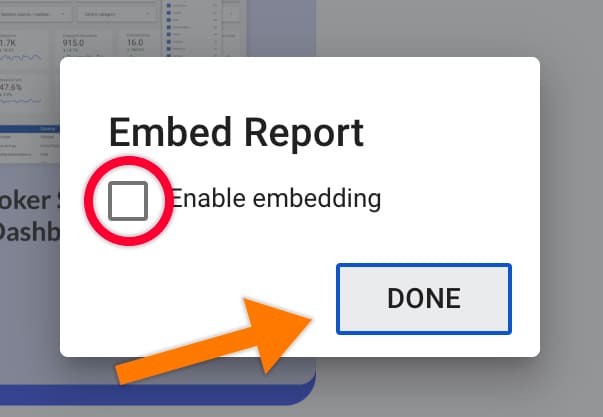
Tick the ‘Enable embedding’ checkbox.
Choose ‘Embed URL’ and copy the url.

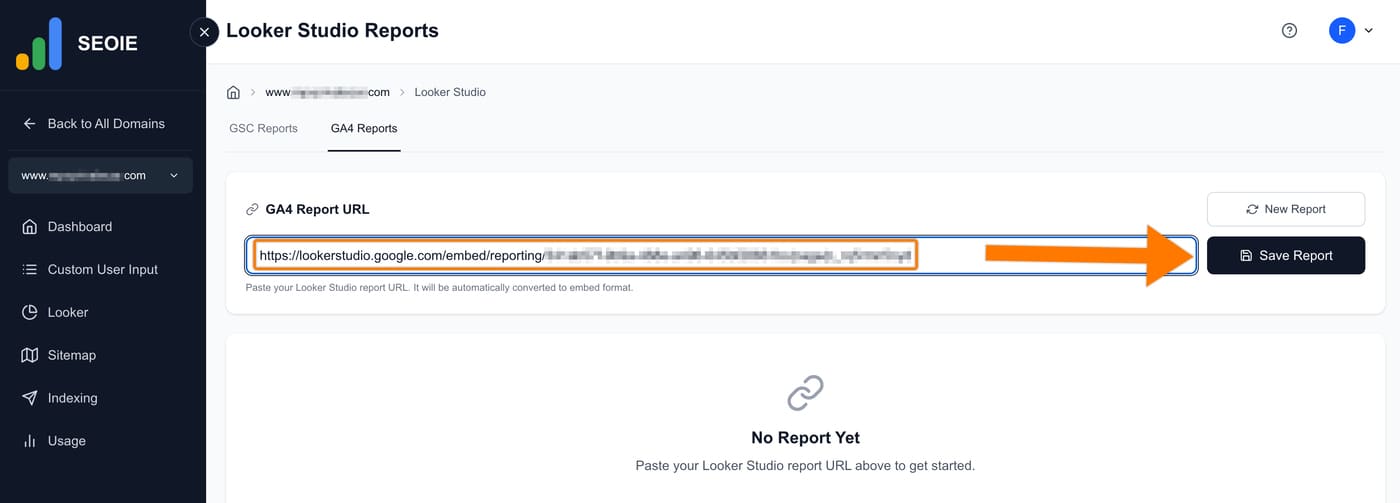
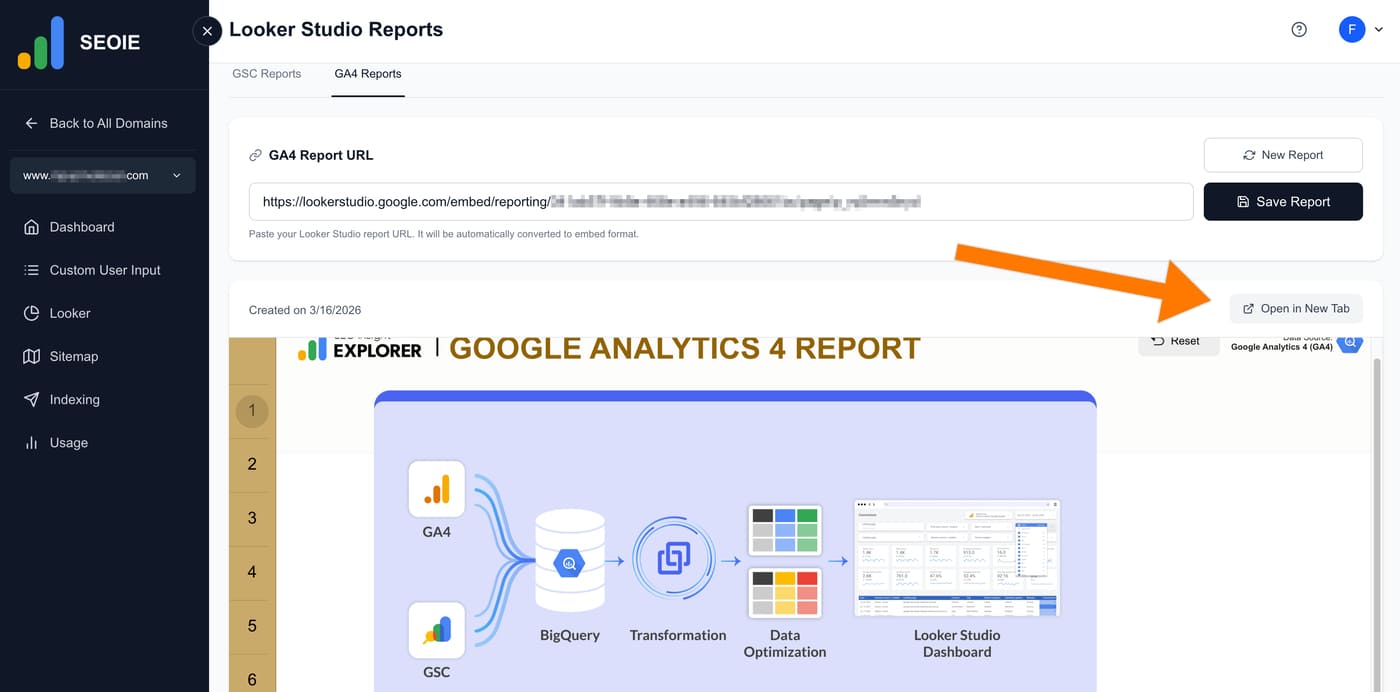
Finally, paste the URL here as shown in the image below and click ‘Save Report’.
When the Google Analytics 4 report appears (as shown in the image below), you have completed the steps correctly.
You can now view the report at any time by clicking ‘Open in New Tab’.
Note: You only need to generate a new report once if Looker updates to a new version.