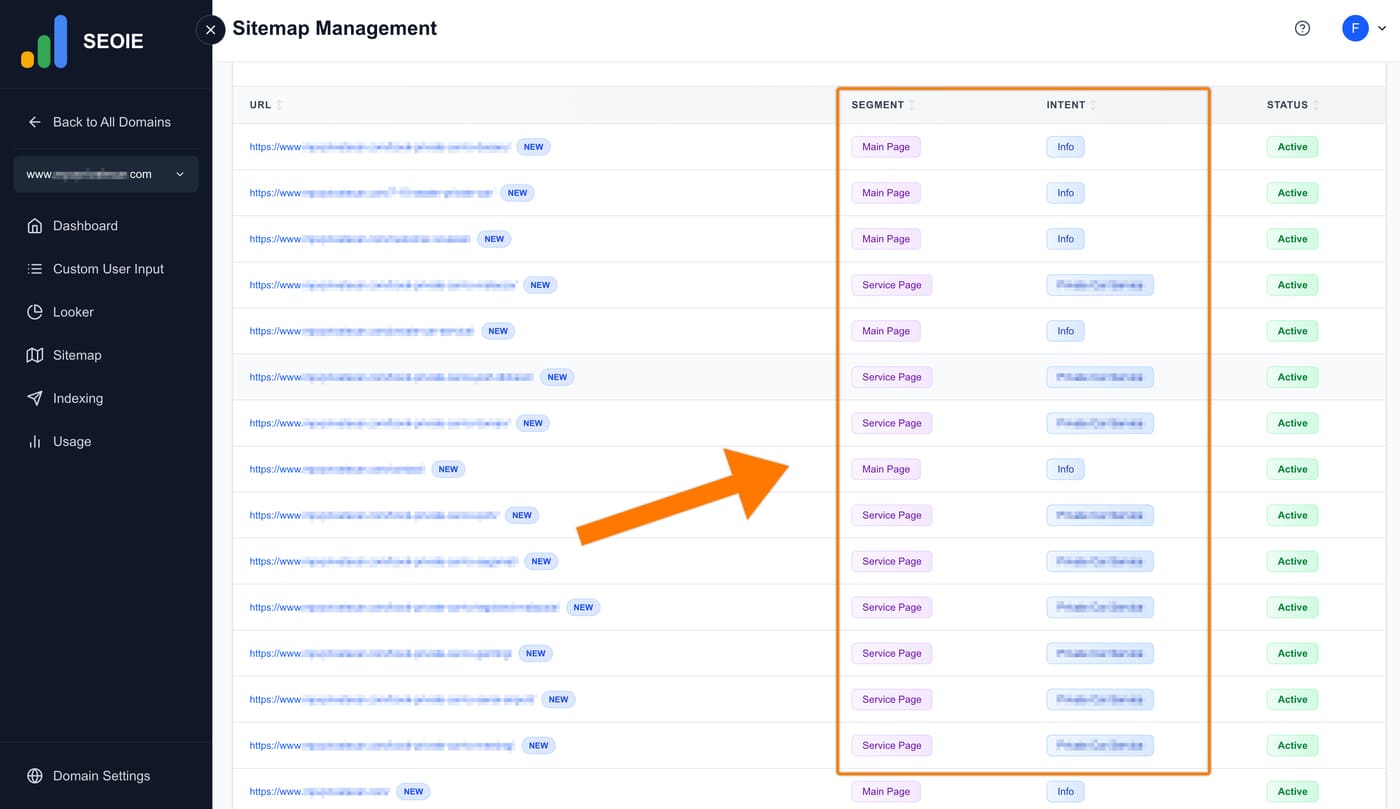
In the ‘Segment Group’ section, click ‘Configure’.

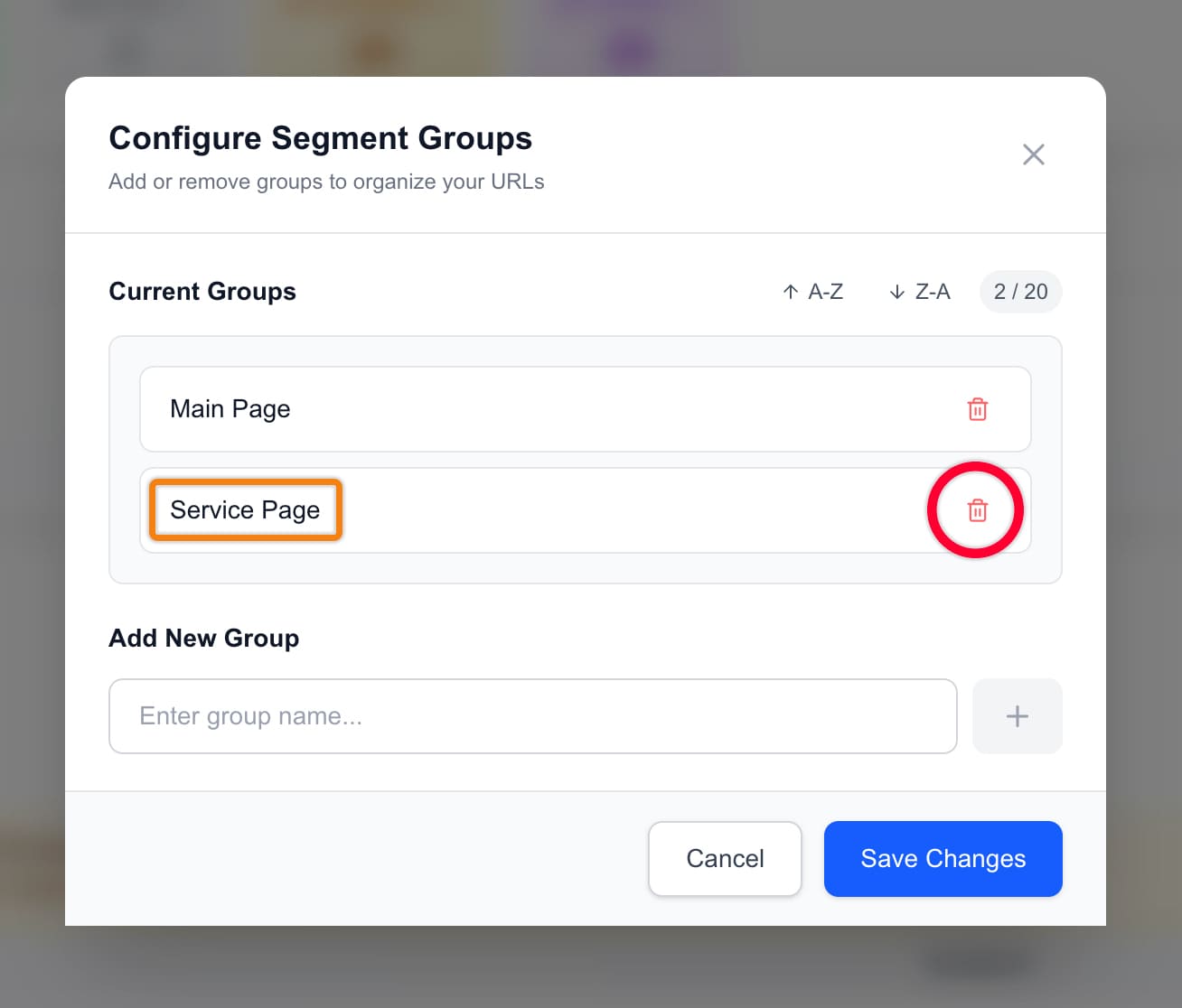
Enter your content group and click the ‘+’ button on the right. Repeat this step until you have entered all your content groups to the Segment Group. Afterward, click ‘Save Changes’.

If you wish to remove a content group, click the trash icon shown in the image below.
In the ‘Intent Group’ section, click ‘Configure’.

Enter your content group and click the ‘+’ button on the right. Repeat this step until you have entered all your content groups to Intent Group. Afterward, click ‘Save Changes’.

Note: If you wish to remove a content group in Intent Group, click the trash icon.
Once you have finished adding your content groups to Segment and Intent Group, click ‘Export’ to download the Excel file.
This file will contain your URL list along with all the content groups you provided.

Open the downloaded file, choose the appropriate content group from the Segment and Intent dropdown lists for each URL, and save your changes.

Navigate to Sitemap, click ‘Import’, and upload the updated Excel file.

An ‘Import Complete’ message will appear. Click ‘Close’.

Your segment and intent keywords are now correctly assigned for each URL in the SEOIE App.