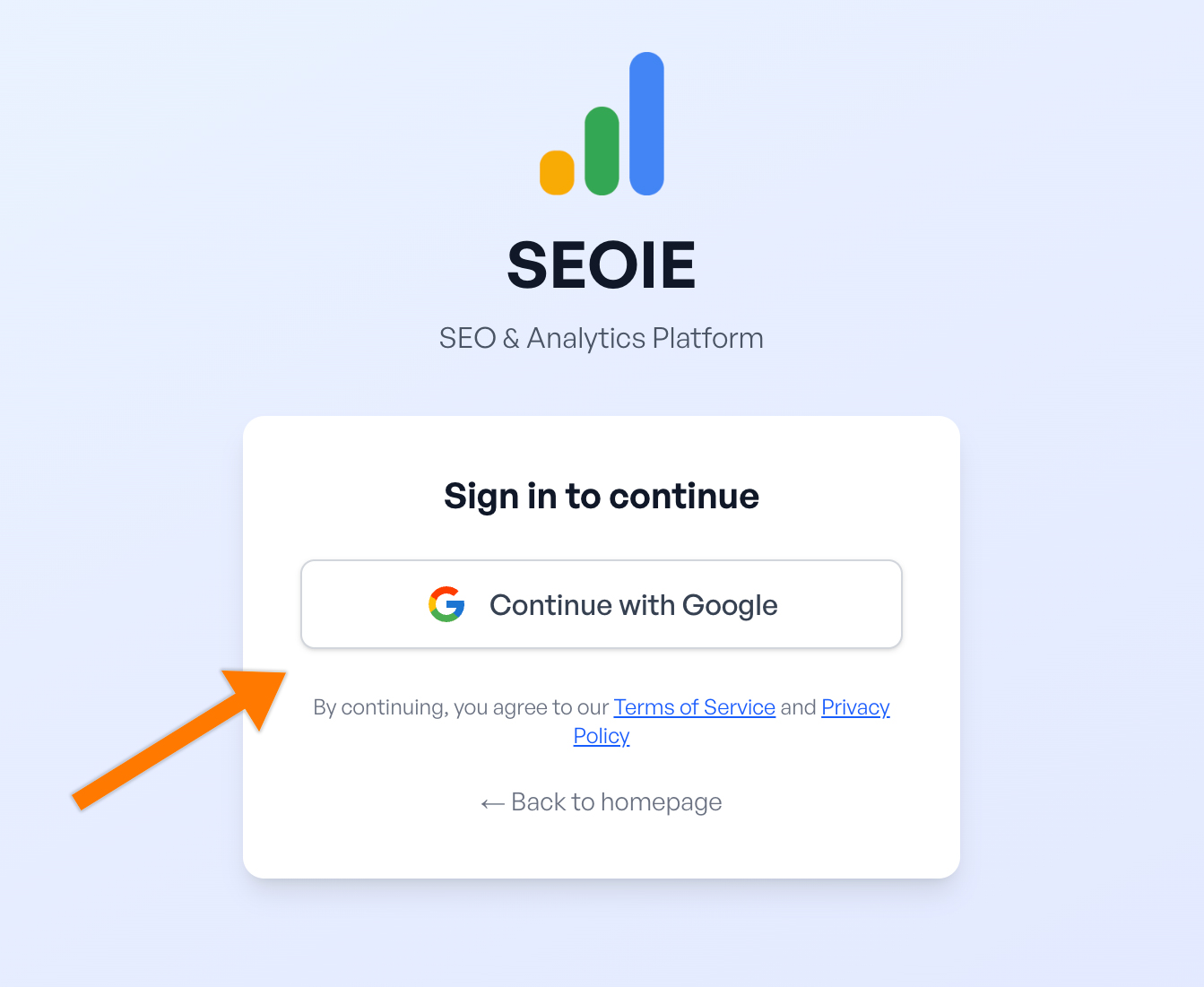
First, go here: https://seoinsightexplorer.com/login and click ‘Continue with Google’.
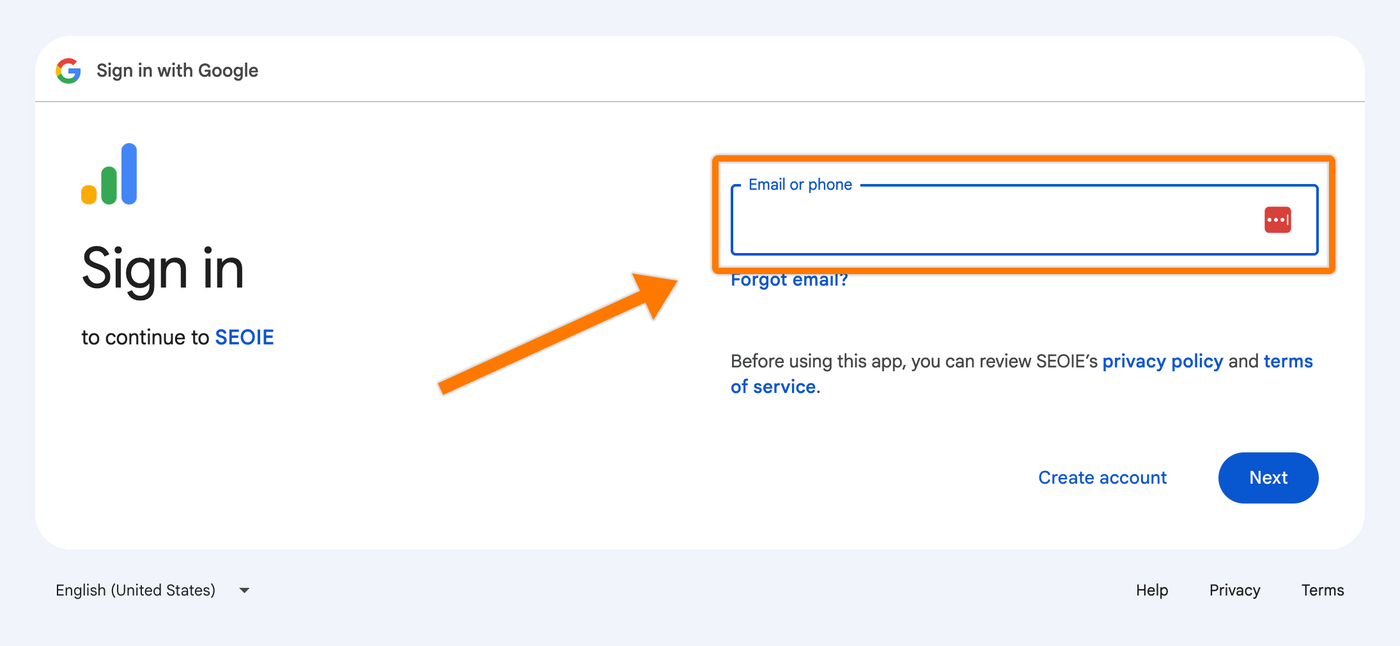
Then, sign in with your preferred Gmail account.
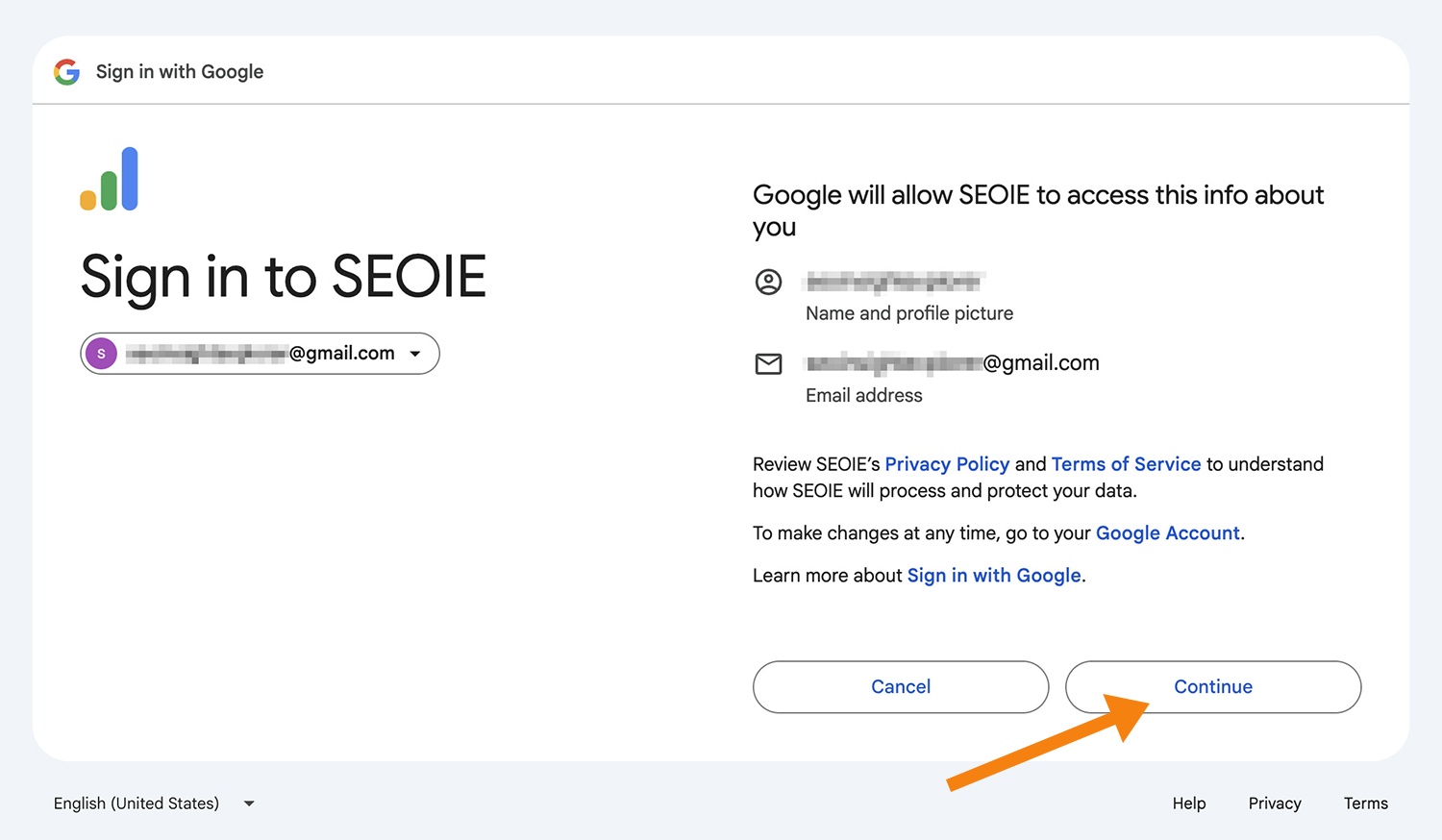
After that, click ‘Continue’ for the first-time sign-in.
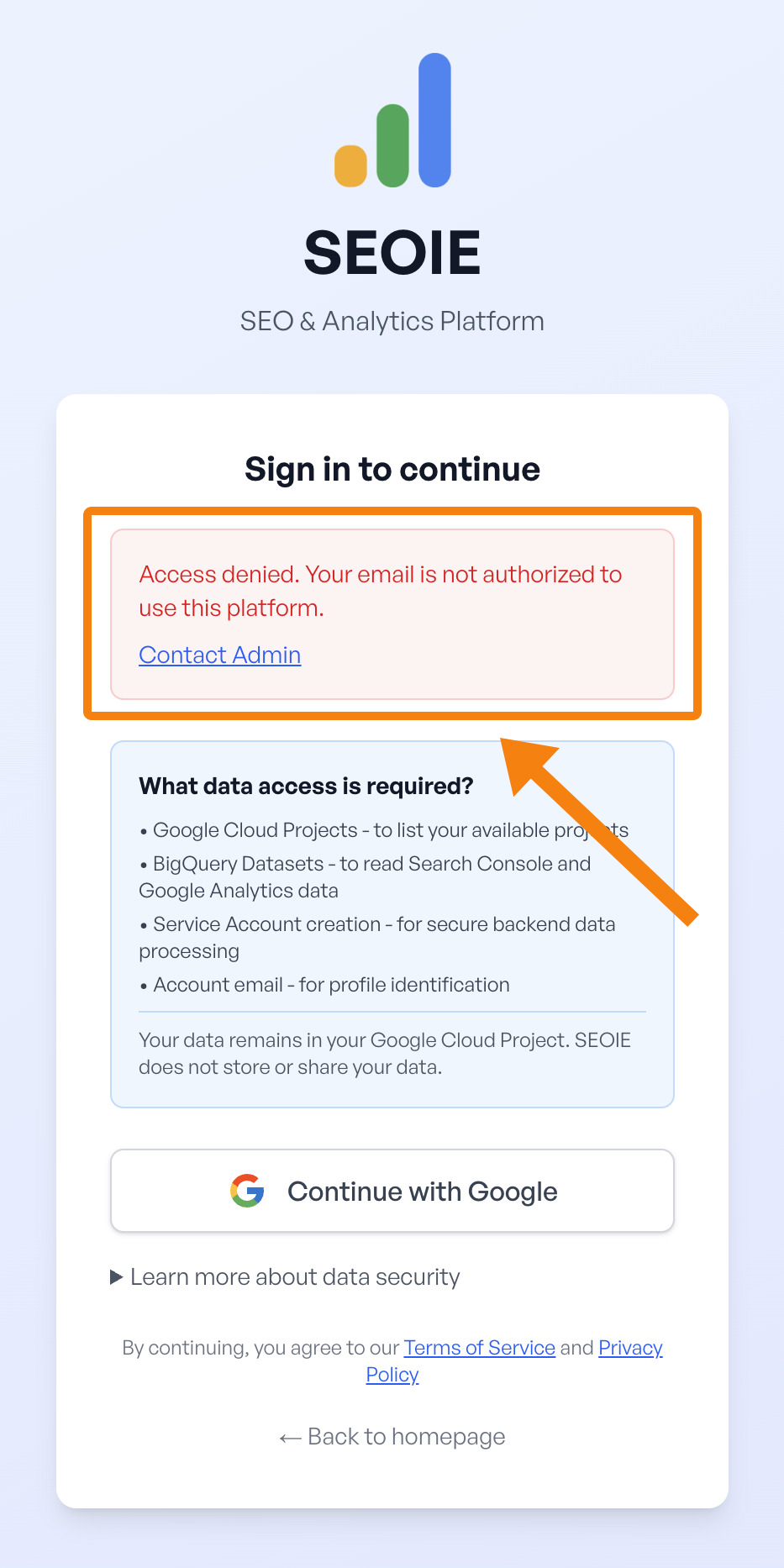
Note: If you have subscribed to our Premium (SEOIE) plan and receive the message, “Access Denied. Your email is not authorized to use this platform” (as shown in the image below), please contact us via email.
Step 2: Connect Google Cloud Project (GCP)
Current Google Account: Select this if the Gmail account you use for the SEOIE App is the same as the one you use for Google Cloud.
Different Google Account: Select this if the Gmail account you use for the SEOIE App is different from your Google Cloud account.
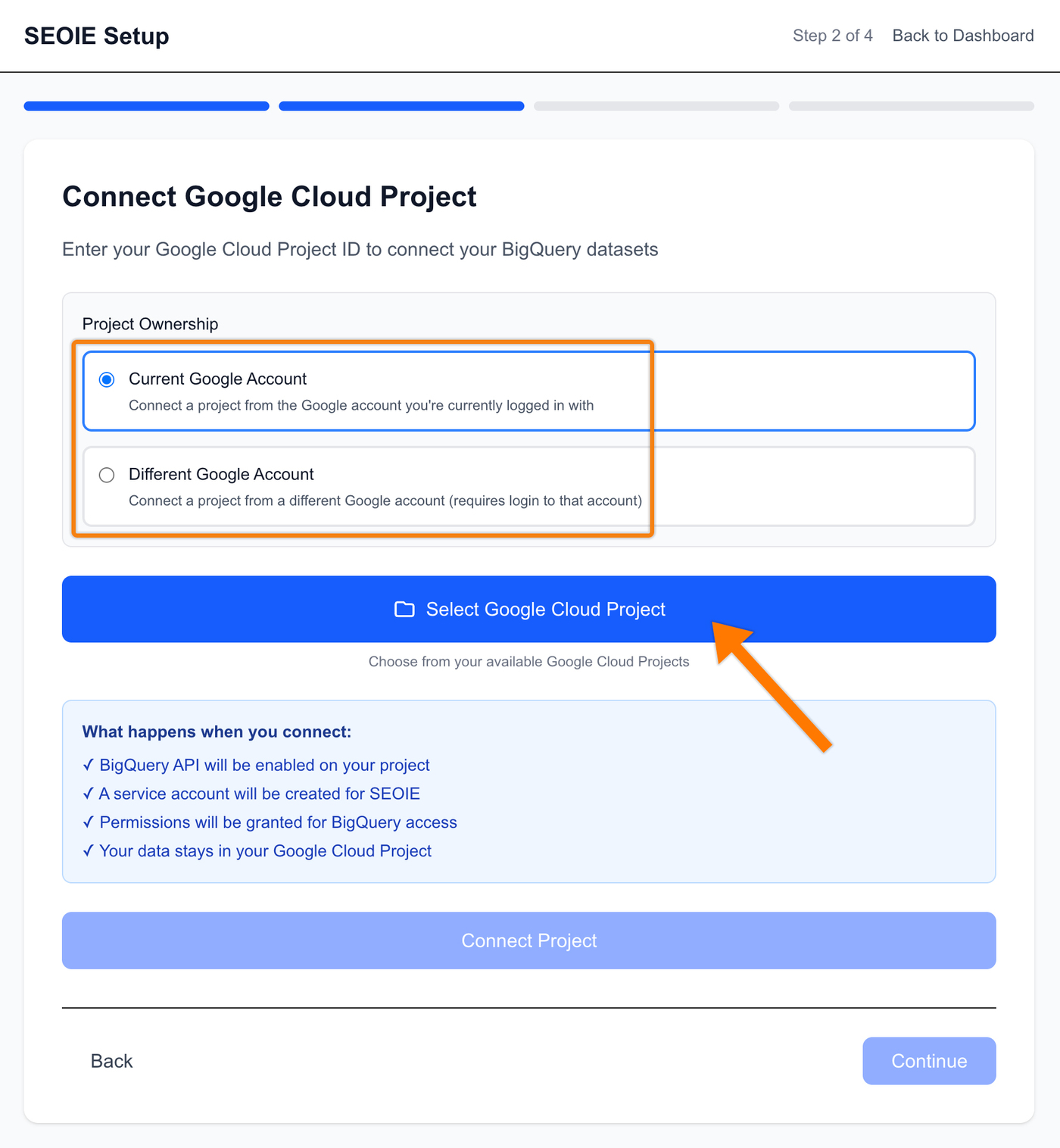
Key in the details below and click ‘Continue’.
- Domain Name: https://www.seoie.com/ (Must end with /)
- Domain Alias: SEOIE

Select Google Cloud Project and then click ‘Select Project’.

And then click ‘Connect Project’.

Next, click ‘Continue’.

After that, click ‘Save & Verify’.
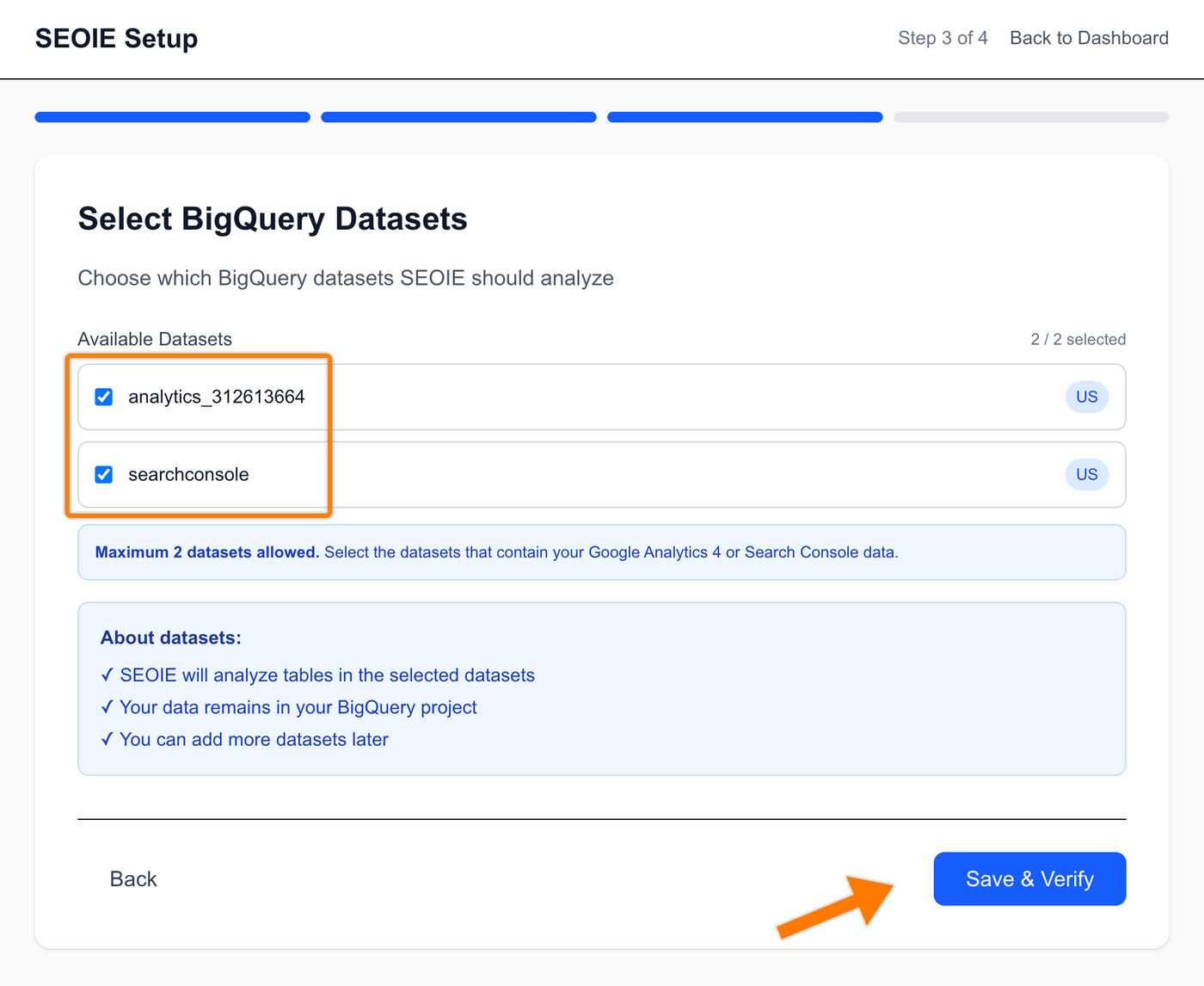
If the domain configuration verification is successful, you will see the message shown in the image below. Then, click ‘Complete Setup & go to Dashboard’.

If the domain configuration verification fails, you will see the message shown in the image below. You can click ‘Retry Verification’ again. If it still fails, please wait until tomorrow to try again.
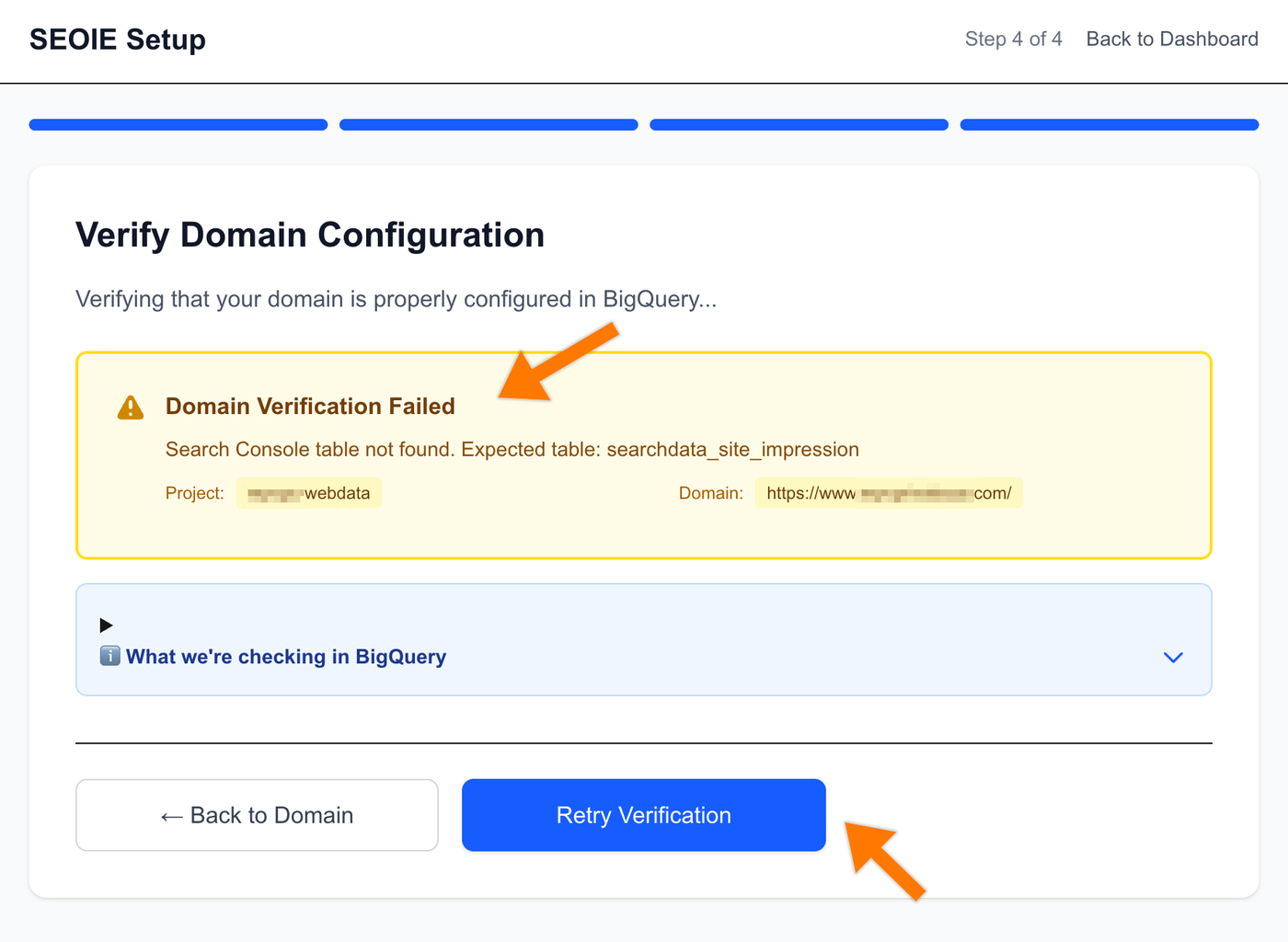
This usually occurs if the GA4 or GSC datasets are not yet available in BigQuery. Please wait 24 to 48 hours for the data to become available in BigQuery.
How do you check if GSC & GA4 data is available in BigQuery? Visit Step 7: GSC & GA4 Data Export Check.