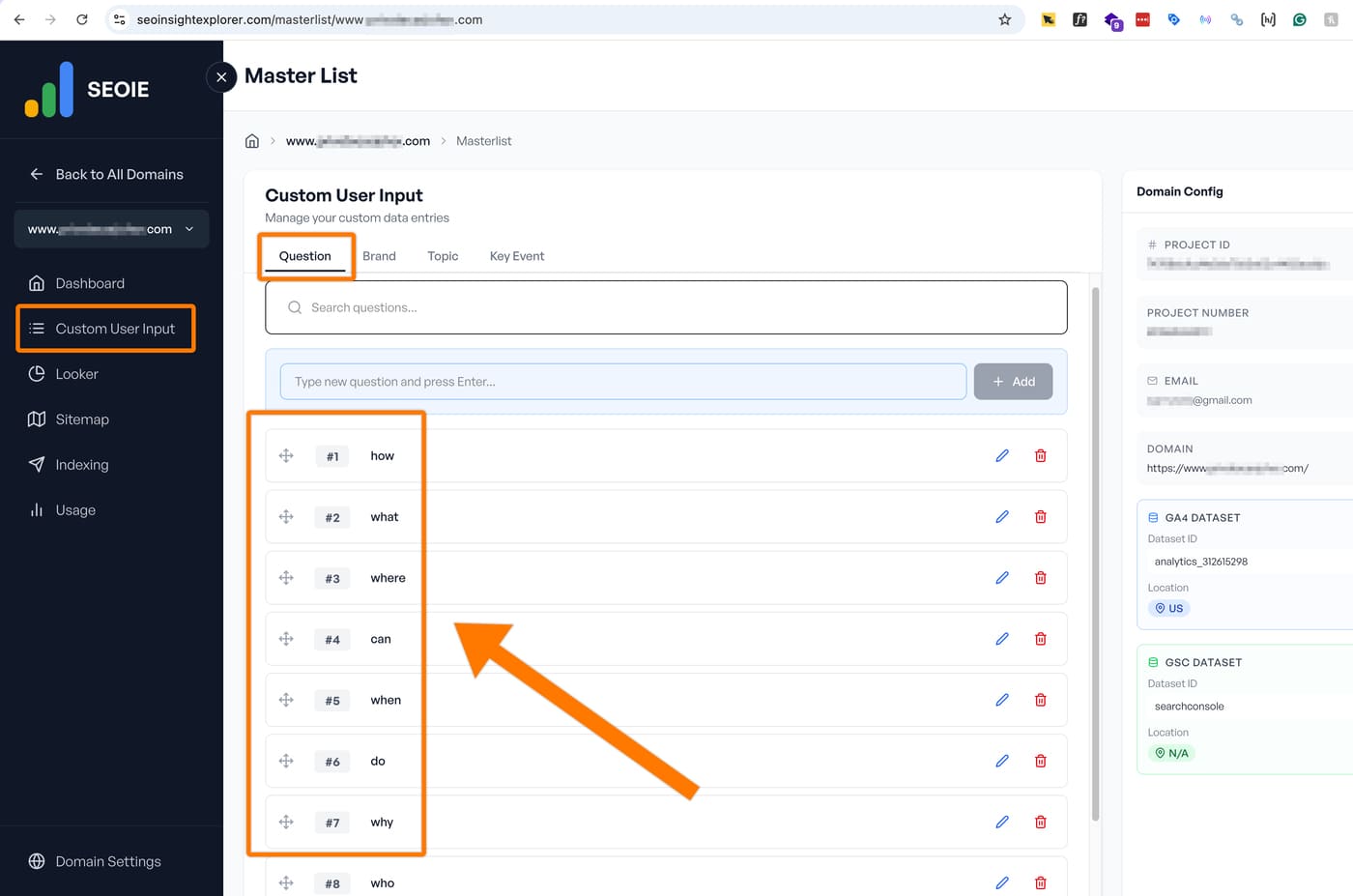
Go to the Custom User Input > Question section to enter your queries.
You can use the default entries (How, What, Where, Can, When, Do, Why, Who, Are) shown in the image below and remove any that you do not need.
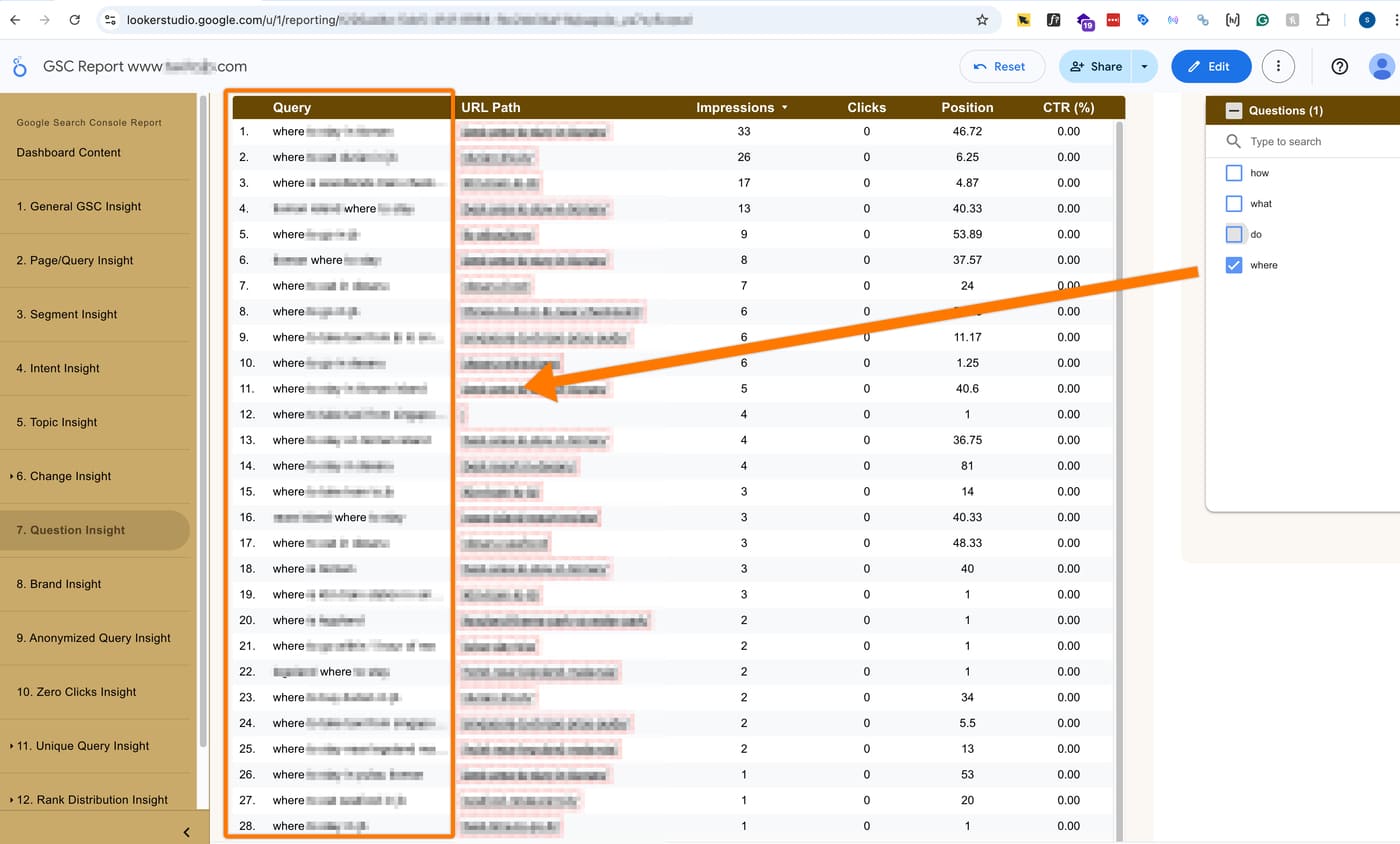
GSC report will show question query grouping based on your input, as shown in the image below:
Note: You can enter a maximum of 20 question queries.
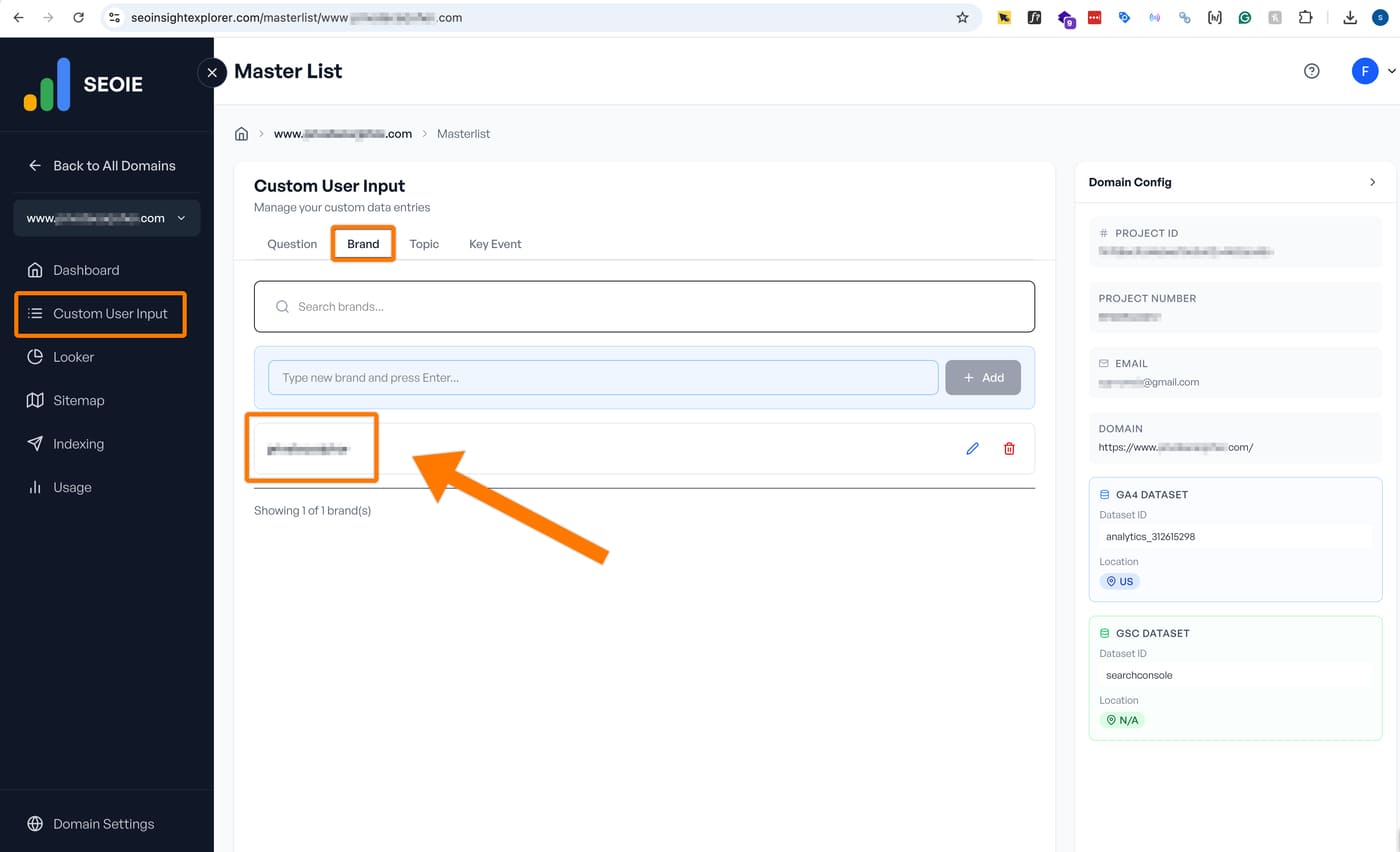
Brand here refers to your website’s name (for example: Google, Yahoo, etc.). You can enter your brand name in the Custom User Input > Brand section, as shown below:
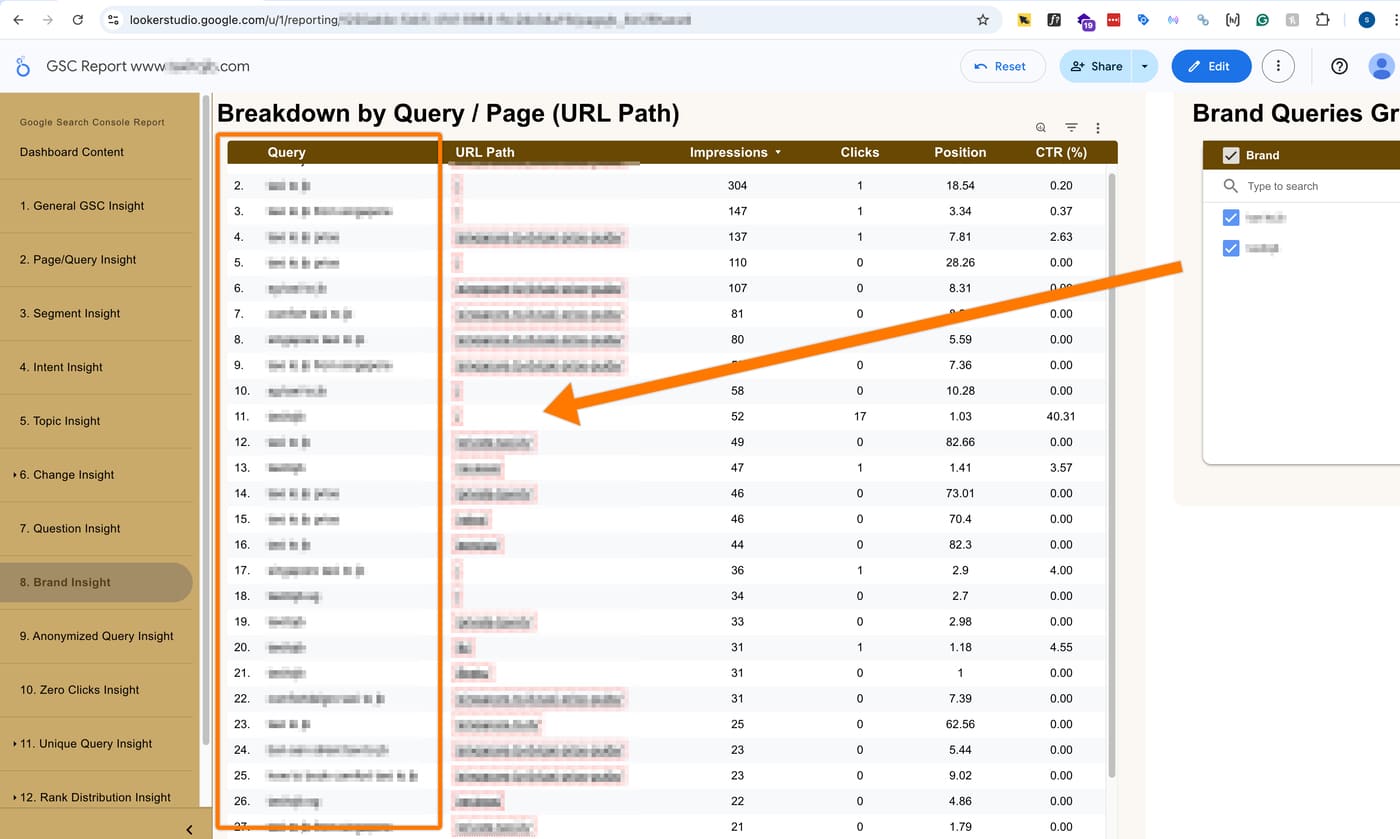
The GSC report will show brand queries grouping based on your input, as shown in the image below:
Note: You can enter a maximum of 20 brand names.
Topic refers to your website’s high-priority content grouping. This allows you to categorize thousands of different search terms (queries) into a few main business topics.
How Priority Works:
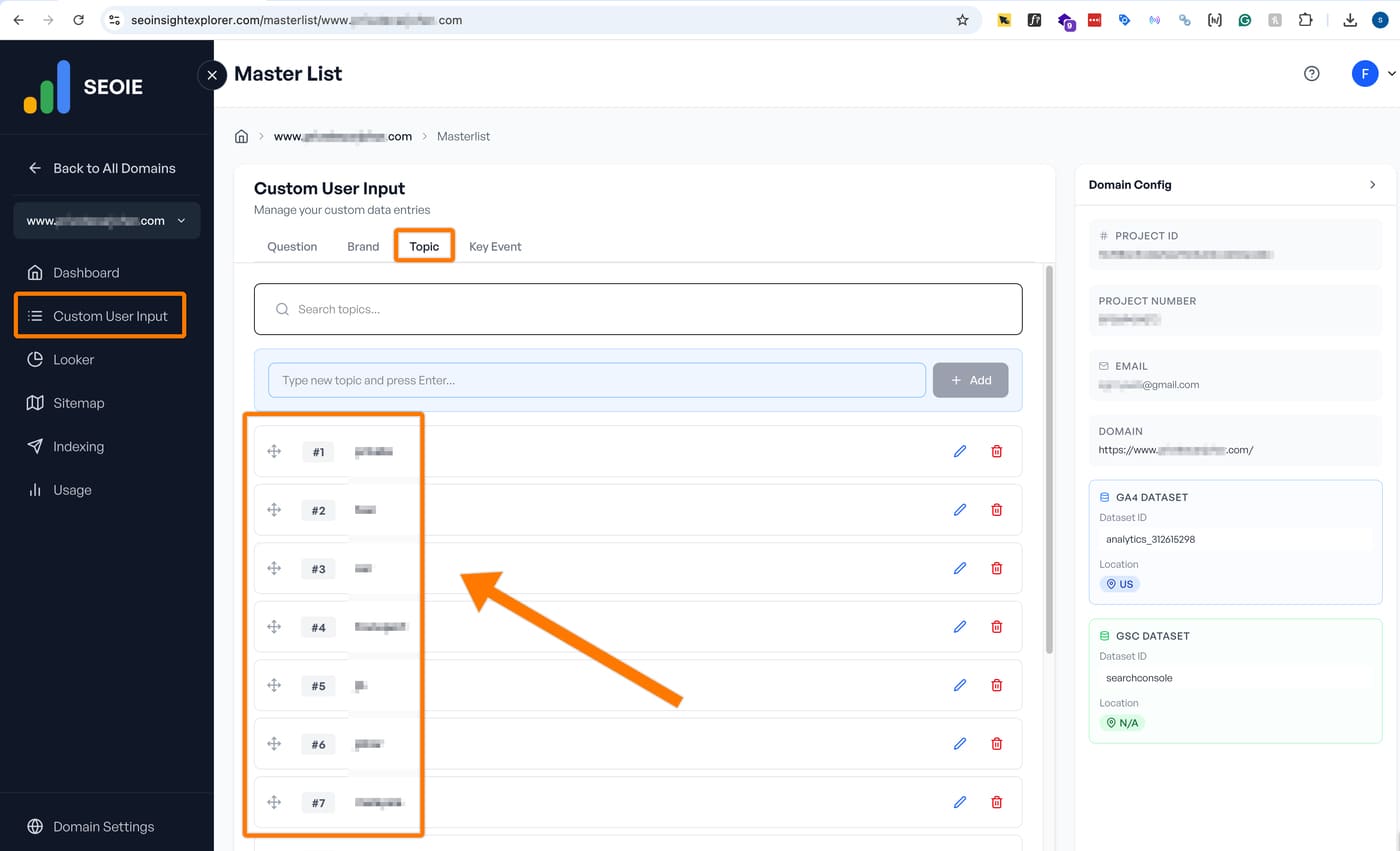
You can set up to 20 topics in order of importance. The priority level (Priority #1, #2, etc.) acts as a sorting rule for the report.
- Priority #1: This is your most important primary topic.
- Priority #2: This is your second most important topic, and so on.
Example of Automatic Sorting:
If you set “Attraction” as Priority #1 and “Singapore” as Priority #2:
- A search for “Singapore attractions” contains both words.
- Because “Attraction” is Priority #1, SEOIE will automatically sort this search into the “Attraction” group.
Setup:
Go to Custom User Input > Topic to enter your keywords for each priority level.
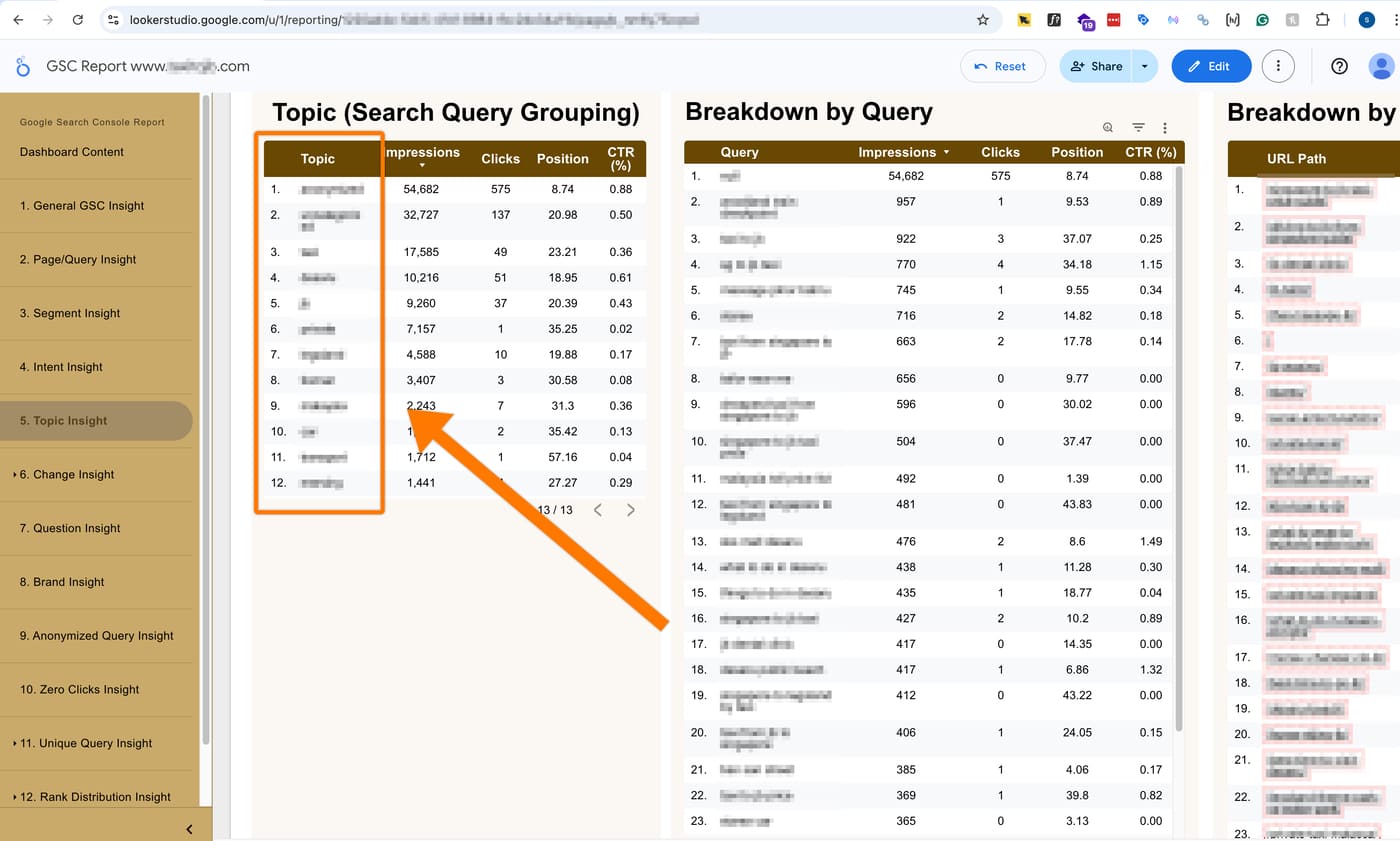
The GSC report will display topic query groupings based on your input, as shown in the image below:
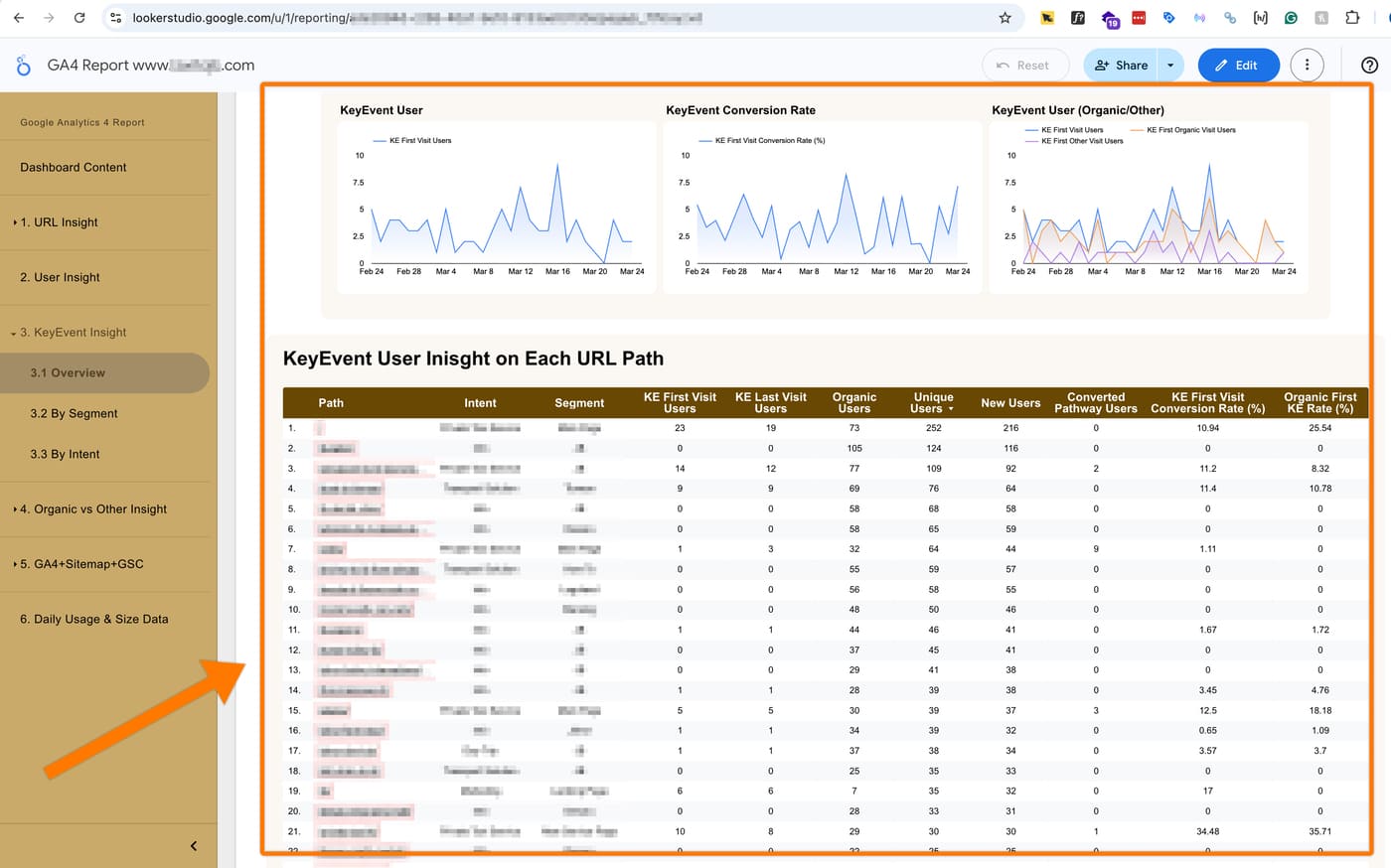
For Key Event: Only fill in this section if you have set up GA4 events like the ones shown in the image below.
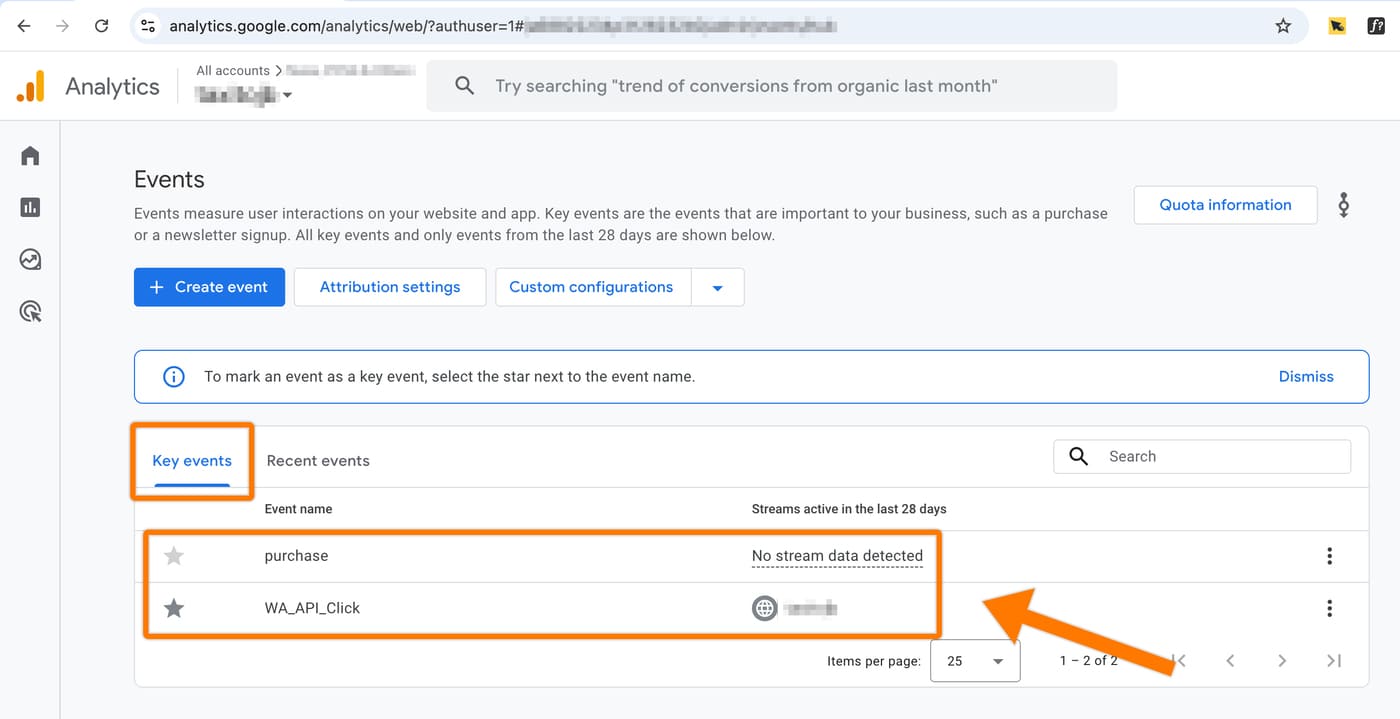
Go to Custom User Input > Key Event to provide your queries. Fill in this section only if you have GA4 events set up; otherwise, you may leave it blank.
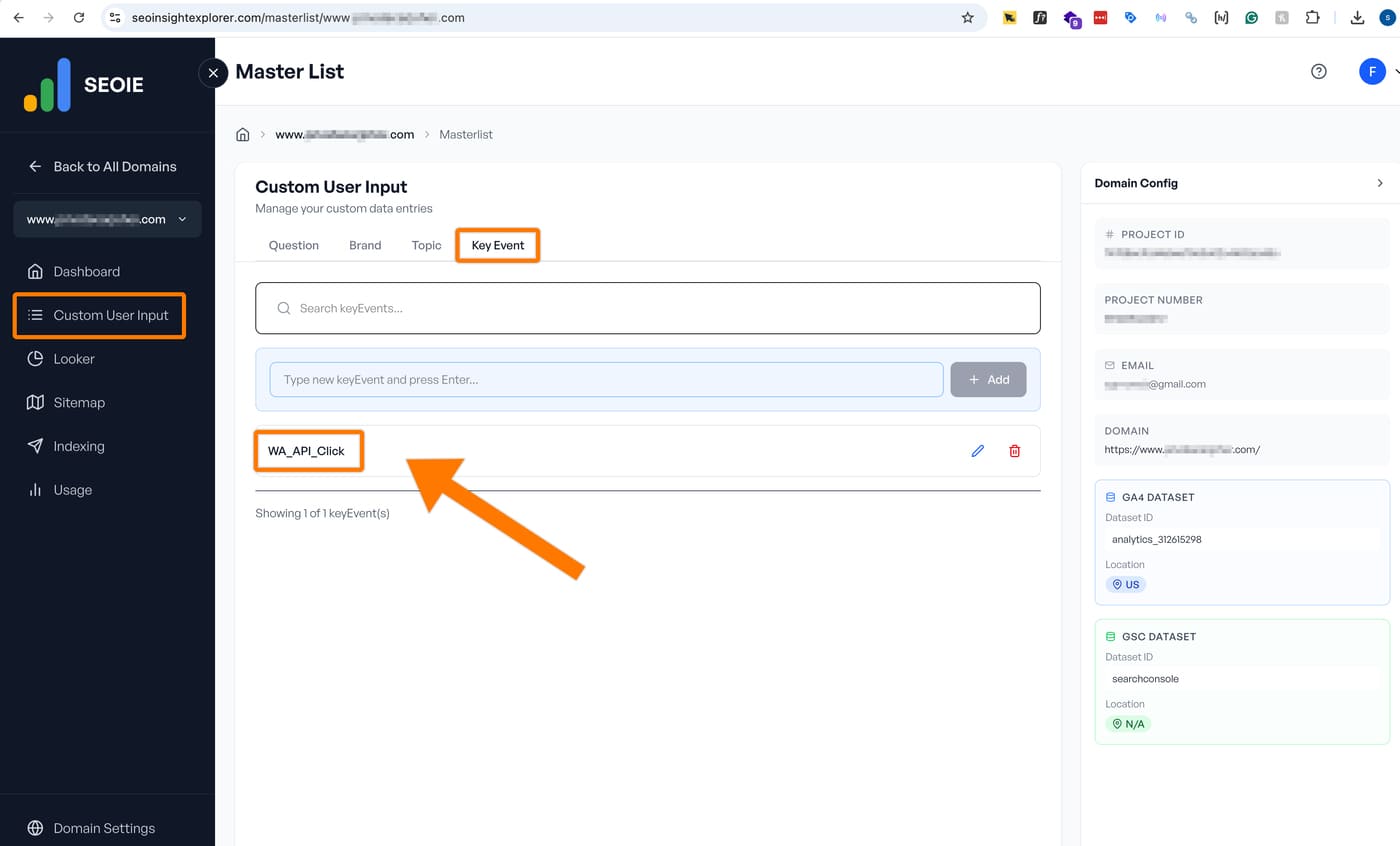
Note: Maximum 1 Key Event allowed.
The GA4 report will group your data based on the Key Event you provide, as shown in the image below: