Why Do You Need This Google Sheet (Custom Input)?
Looker Report is a visualization tool, but it needs your specific input to make the data relevant to your business or SEO goal. As the site owner, you know your website better than any AI.
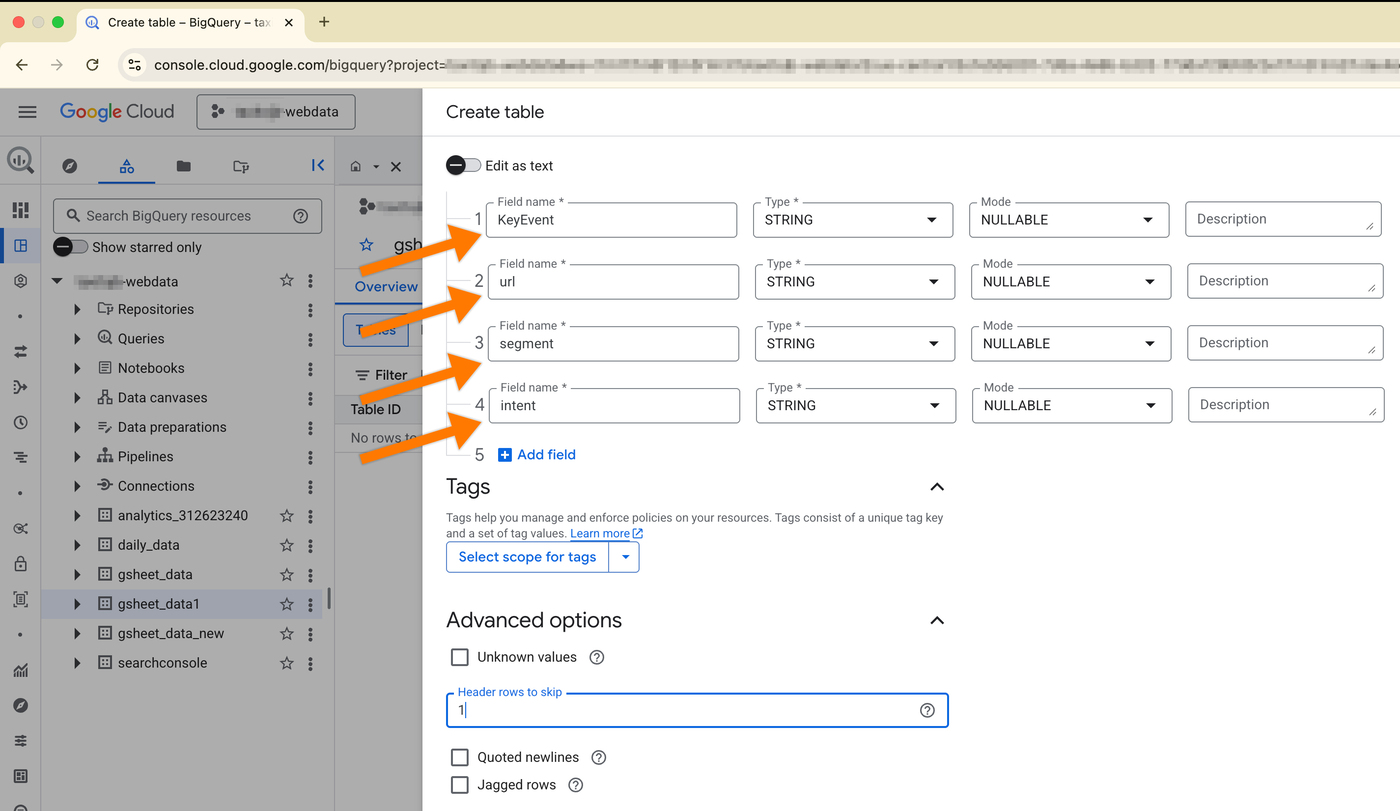
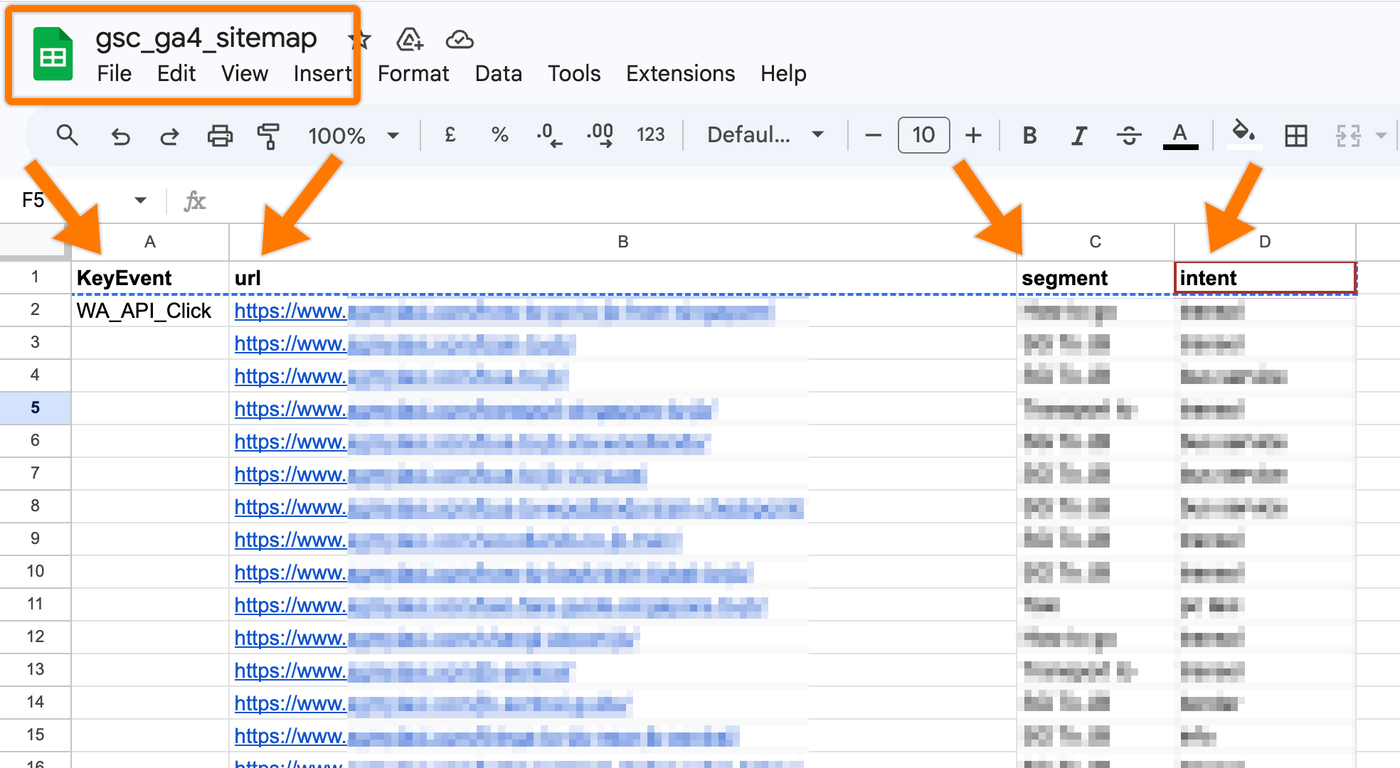
To track your content accurately, you must define your own Segments and User Intent. This is why filling in the Key Event, URL, Segment, and Intent columns is essential.

The custom data input needs to be specified as follows:
Column 1: KeyEvent – You must fill in only 1 GA4 Key Event to track.
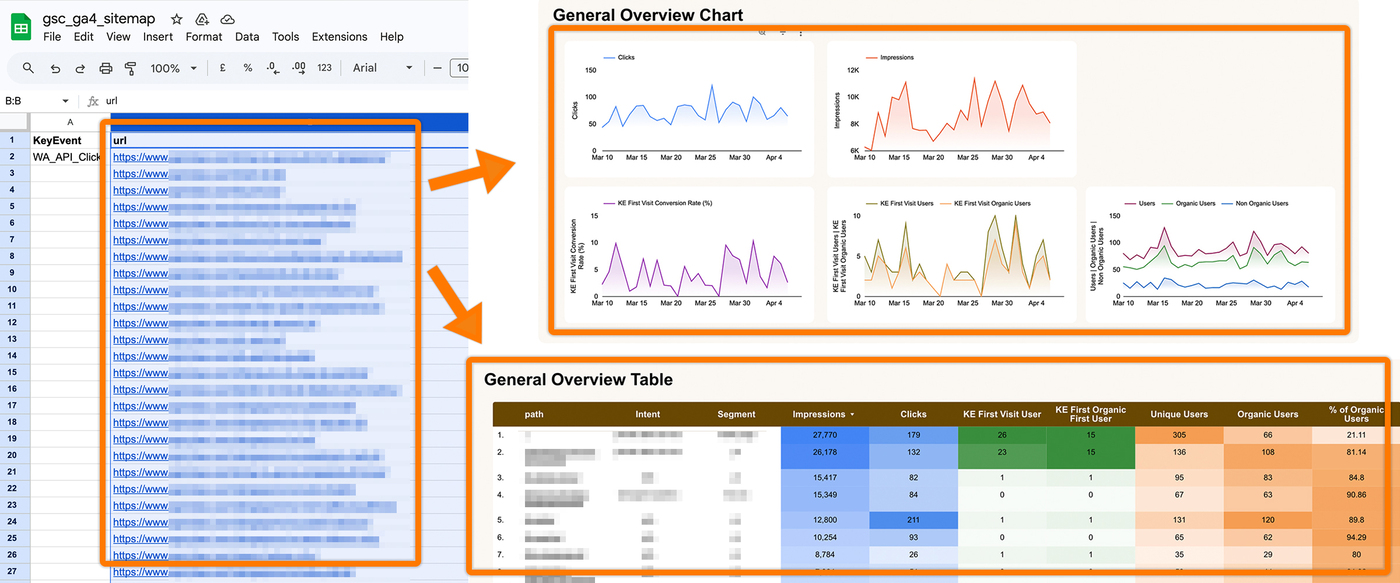
Column 2: URL – Enter all the webpage URLs you wish to monitor.
Crucial: Ensure every URL ends with a trailing slash (e.g., https://www.abc.com/). Only include pages from a single website in this column; do not mix multiple domains.
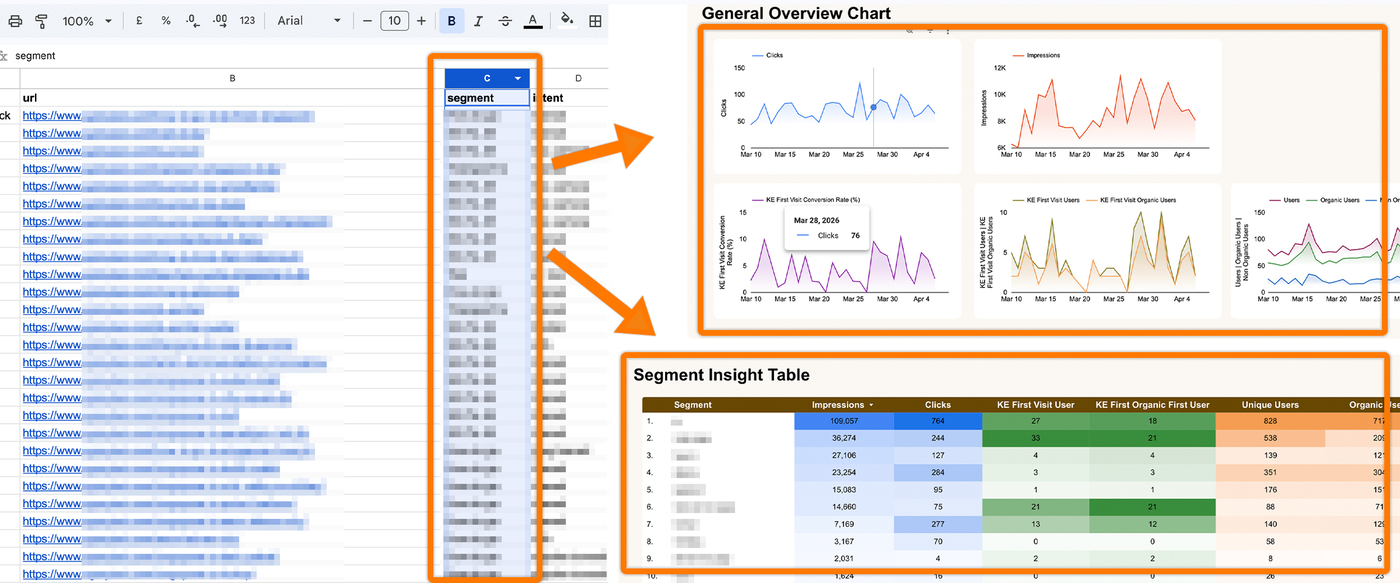
Column 3: Segment – This column is essential for the Segment filters in the Looker report. This is your first layer of filtering. You must manually group your URLs by similar content.
For example:
| url | segment |
| https://www.abc.com/luxury-hotels-nearby/ | Accommodation |
| https://www.abc.com/budget -stays-comparison/ | Accommodation |
| https://www.abc.com/top-10-family-activities/ | Attractions |
| https://www.abc.com/history-of-landmark/ | Attractions |
| https://www.abc.com/how-to-skip-the-lines/ | Tips & Hacks |
| https://www.abc.com/essential-packing-list/ | Tips & Hacks |
Column 4: Intent – This column is also essential for the Intent filters in the Looker report. This is your second layer of filtering. You need to manually group your content based on specific user intentions.
For example:
| url | segment | intent |
| https://www.abc.com/luxury-hotels-nearby/ | Accommodation | Compare |
| https://www.abc.com/budget -stays-comparison/ | Accommodation | Compare |
| https://www.abc.com/top-10-family-activities/ | Attractions | Explore |
| https://www.abc.com/history-of-landmark/ | Attractions | Explore |
| https://www.abc.com/how-to-skip-the-lines/ | Tips & Hacks | Prepare |
| https://www.abc.com/essential-packing-list/ | Tips & Hacks | Prepare |
Important Note:
Avoid using generic intents like ‘Informational’ or ‘Transactional.’ Instead, use Action-Based Intent to describe specific human behaviors. This makes it much easier to identify exactly where a user is in their journey.
| Avoid (Generic) | Use Instead (Action-Based) |
| Informational | How-to Guide, Setup Guide, Research |
| Commercial | Product Review, Comparison, Pricing |
| Transactional | Download, Book Now, Subscription |
How to Identify True Intent:
- Analyze Keywords: Look for “how/what” vs. “buy/price” modifiers.
- Study SERPs: See if Google ranks blog posts or product pages for the query.
- Monitor Behavior: Review which specific pages users visit and their search paths.
The four column titles from your Google Sheet will be used to define the schema when creating the table in BigQuery.
2. Where To Find Your KeyEvent (KE) In GA4
Here Is Step-by-Step Navigation
- Login: Go to analytics.google.com.
- Reports: Click the Reports icon in the left-hand sidebar.
- Engagement: Expand the Engagement collection.
- Events: Click on the Events report.

4. Visualizing The Integration: From Google Sheet To Looker Report
The Google Sheet acts as your Input, while the Looker Report serves as your Output.. A. Key Event Mapping When you fill in the Key Event in Column 1 of the Google Sheet (image below left), the Looker Report (image below right) transforms to visualize your KE First Visit Conversion Rate and KE First Visit User metrics.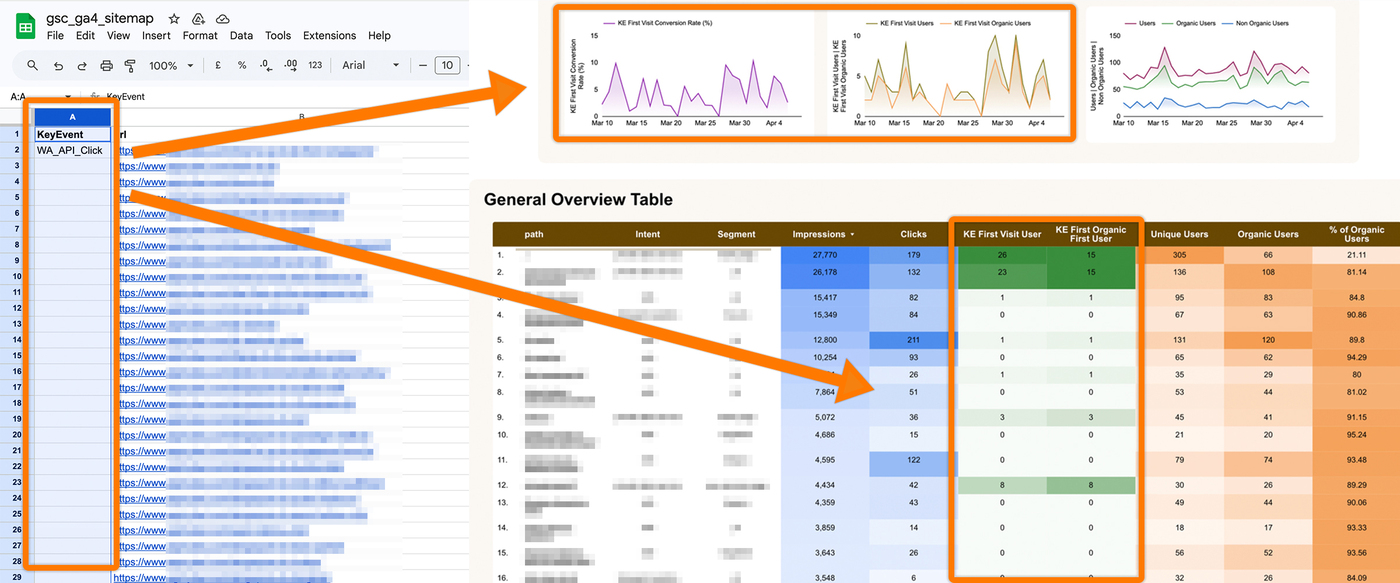 B. URL Mapping
When you list your URLs in Column 2 of the Google Sheet (image below left), the Looker Report (image below right) filters the data to display performance specifically for those pages.
B. URL Mapping
When you list your URLs in Column 2 of the Google Sheet (image below left), the Looker Report (image below right) filters the data to display performance specifically for those pages.
 C. Segment Mapping
When you fill in the Segment in Column 3 of the Google Sheet (image below left), the Looker Report (image below right) generates the Segment Insight Table to show which specific segments drive the most traffic and conversions.
C. Segment Mapping
When you fill in the Segment in Column 3 of the Google Sheet (image below left), the Looker Report (image below right) generates the Segment Insight Table to show which specific segments drive the most traffic and conversions.
 D. Intent Mapping
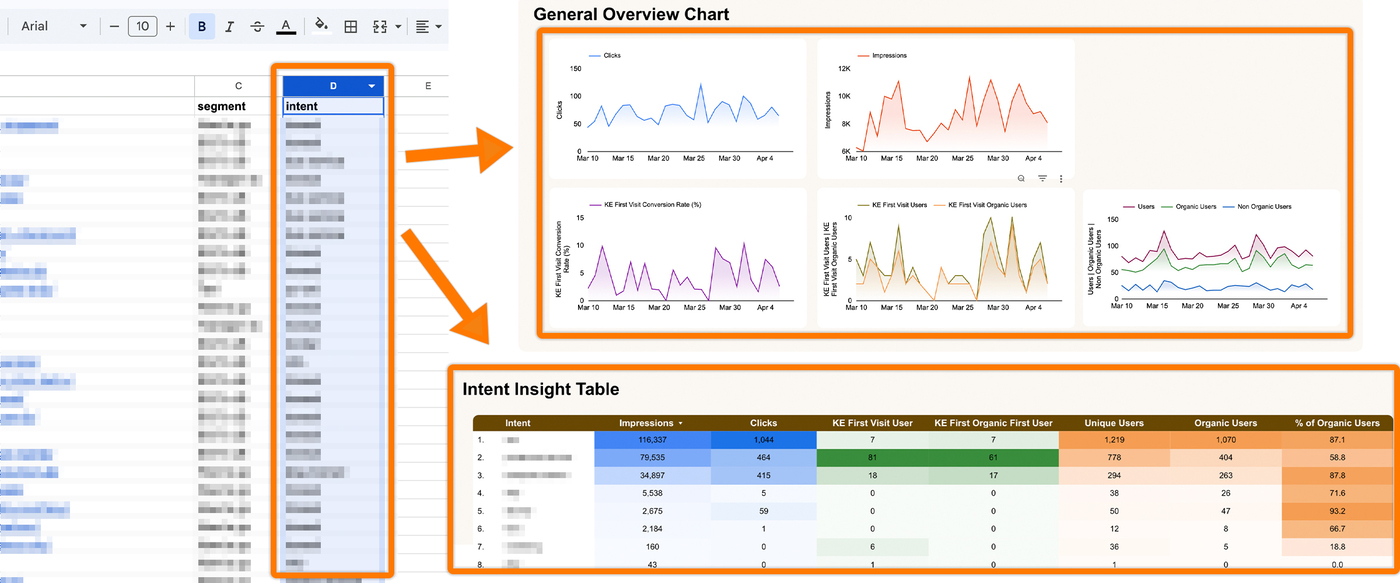
When you fill in the Intent in Column 4 of the Google Sheet (image below left), the Looker Report (image below right) visualizes the traffic quality and mindset of your visitors across your different content types.
D. Intent Mapping
When you fill in the Intent in Column 4 of the Google Sheet (image below left), the Looker Report (image below right) visualizes the traffic quality and mindset of your visitors across your different content types.
How To Structure Your Google Sheet For BigQuery Integration?
Before generating a one-page GSC + GA4 Looker Report, you MUST first structure a Google Sheet as follows:
https://docs.google.com/spreadsheets/d/1nD7Ixz0P0kXjpk8w39ifmK6OGJfyWo0pSfZp9ncTOeA/edit?gid=0#gid=0
Below are the steps:
Step 1: Create a new Google Sheet (name it “gsc_ga4_sitemap” or your preferred title).
Step 2: Copy the headers from Row 1 (KeyEvent, url, segment, and intent) from the link above.
Note: Ensure your Google Sheet is saved under the same account as your Google Cloud project. Both must use the exact same email address.
Step 3: Paste the headers into your new google sheet.